
MeetAlgo allows users to test any Expert Advisor (EA) or Indicator before purchase using Backtest or Visual Backtest mode.
This helps you understand how the product works, how trades are opened/closed, and how the strategy behaves in different market conditions.
Follow the steps below to test any product before buying.
Step 1: Go to Product Page
Visit our Trading Software page:
👉 https://meetalgo.com/product/trading-software/Browse the list of available trading tools.
Click on the product you want to test (EA or Indicator).
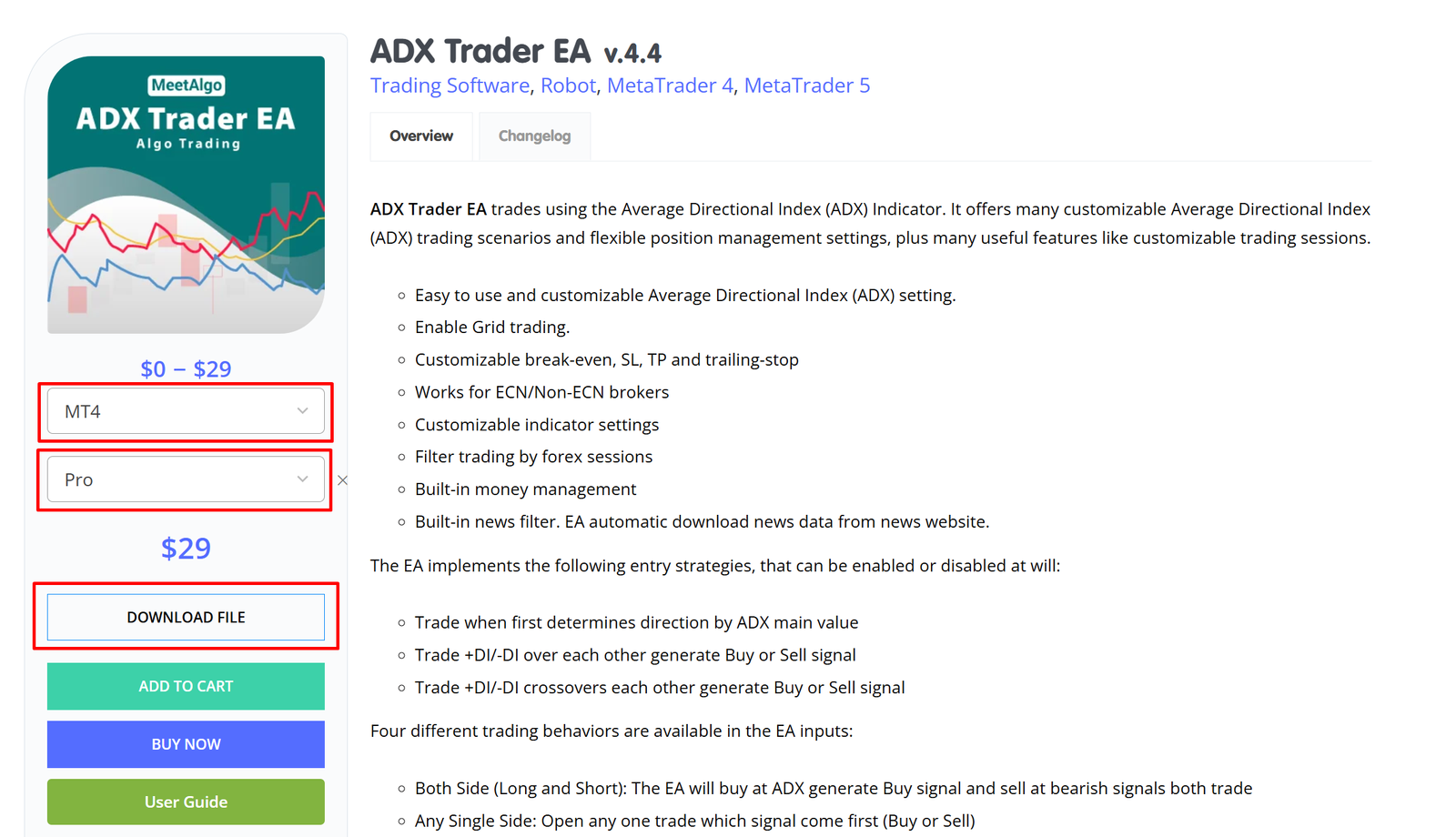
Step 2: Select Product Options
On the Product Details page, select the required options:
1️⃣ Select Product Terminal
Choose your trading platform:
MT4
MT5
cTrader
2️⃣ Select Product Type
Choose one of the available versions:
Free
Lite
Pro
After selecting both options, the product price and actions will update automatically.
Step 3: Download Product File
After selecting the terminal and product type, you will see the Download File button.
Click Download File to download the ZIP file of the product.
🔔 Important Notes
If you are not logged in, the download button will ask you to log in first.
If you are a new user, you must register an account before downloading.
Free and Lite versions still require checkout (price may be $0).
After completing the purchase, the download link will be available in your account.
Step 4: Extract and Install the Product
Unzip the downloaded ZIP file.
Inside the folder, you will find the EA or Indicator file.
Install in MetaTrader (MT4 / MT5)
Open your trading terminal
Go to File → Open Data Folder
Copy the EA/Indicator file into:
MQL4 → ExpertsorMQL4 → Indicators(MT4)MQL5 → ExpertsorMQL5 → Indicators(MT5)
Restart the terminal
Install in cTrader
Copy the
.algoor.csfile into the cTrader indicators or robots folderRestart cTrader
Step 5: Test Using Strategy Tester (Backtest)
Open your trading terminal
Go to View → Strategy Tester
Select:
Your EA or Indicator
Symbol (example: EURUSD, GOLD, etc.)
Timeframe
Date range
Choose testing mode:
Backtest Mode – for performance testing
Visual Mode – to see trades visually on the chart
Click Start
The EA will now run in test mode and show how it trades based on historical data.
Step 6: Visual Backtest (Recommended)
We strongly recommend Visual Backtest mode to:
See live trade entries and exits
Understand strategy logic
Observe trade management behavior
Visual mode helps you clearly see how the EA or Indicator works before purchasing the full version.
What You Can Test Before Purchase
✔ Entry and exit logic
✔ Strategy behavior
✔ Trade frequency
✔ Indicator signals
✔ Visual trade execution
What You Cannot Do Before Purchase
✖ Use the EA on a live or demo account
✖ Activate license
✖ Run unlimited live trading
(These features are available after purchase and activation.)
Need Help?
If you face any issue during testing:
Check the User Guide of the product
Contact our support team
Join our Telegram channel for updates and assistance
✅ Testing before purchase is always recommended to ensure the product fits your trading style and expectations.

