
Unlock the power of your MT4/MT5 trading strategies and signals by seamlessly integrating them with the Match-Trader platform using our advanced trade copier EA. This solution bridges the gap between MetaTrader and Match-Trader, providing you with unmatched flexibility, real-time execution, and automated multi-account copying.
Getting Started – Configuration Steps
You must follow these 5 essential steps to configure the EA correctly:
✅ STEP 1 – Gather Required Login Information
Before starting, make sure you have the following details from your Match-Trader account:
- ✅ Server URL (must be a valid URL)
- ✅ Email Address
- ✅ Password
- ✅ Account Number
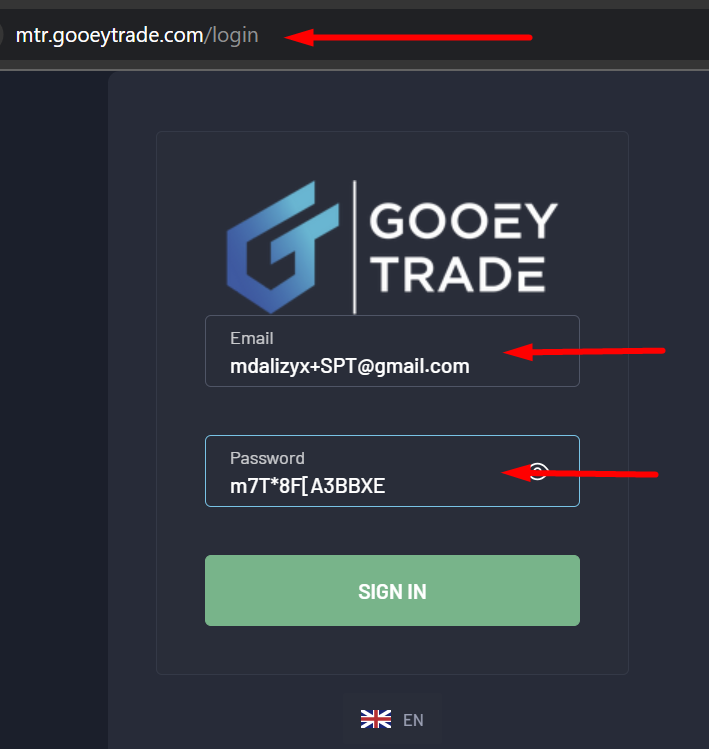
⚠️ What is a Valid Server URL?
You must use the base URL of your Match-Trader platform. Avoid including paths like /login or /dashboard.
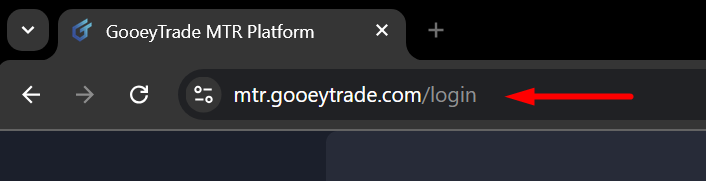
❌ Incorrect Examples:
-
https://mtr.gooeytrade.com/login
🔹 Incorrect because it includes/login— this is a path, not the base URL. -
https://mtr.gooeytrade.com/dashboard
🔹 Incorrect because it includes/dashboard— this is a subpage, not the root URL. -
mtr.gooeytrade.com
🔹 Incorrect because it’s missinghttps://at the beginning and/at the end.
✅ Correct Format:
-
https://mtr.gooeytrade.com/
Make sure it starts with https:// and ends with a forward slash /.
✅ STEP 2 – Add Server URL to MetaTrader
Open your MetaTrader terminal and follow these steps:
-
Go to
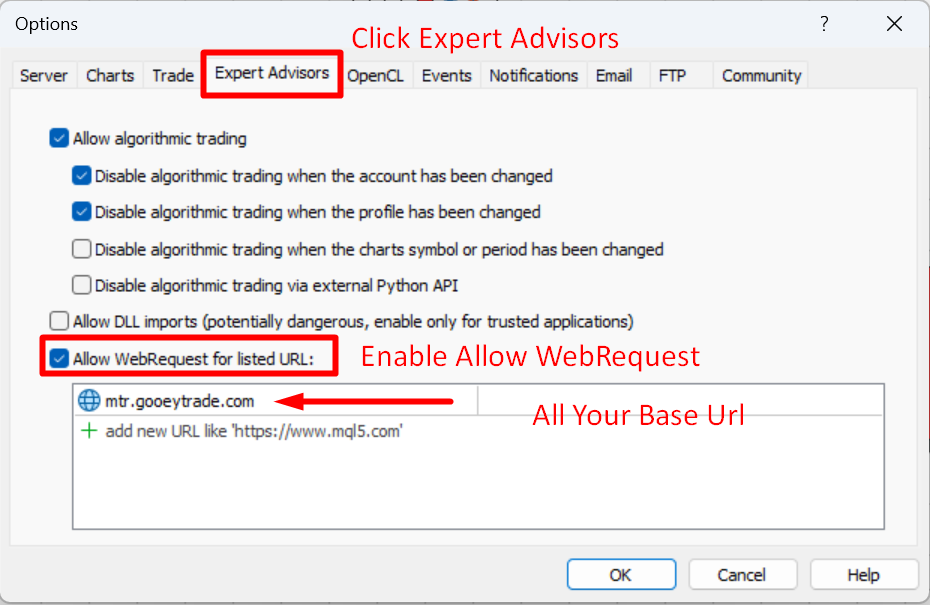
Tools>Options>Expert Advisors. -
Under Allow WebRequest for listed URL, add your Match-Trader base URL (e.g.,
https://mtr.gooeytrade.com/). -
Click OK to save changes.
✅ STEP 3 – Configure the EA Settings
In the EA input settings on the chart, enter the following:

- Email: Your Match-Trader account email
- Password: Your Match-Trader login password
- Server: Your Match-Trader base URL (e.g.,
https://mtr.gooeytrade.com/) - Account Number: Your Match-Trader trading account number
🔄 STEP 4 – Pair Matching Configuration
For successful trade copying, the symbol names (currency pairs, assets, etc.) must match between MetaTrader and Match-Trader. If the names are not identical due to prefixes or suffixes, you can use the following tools:
- Match With Pre-Define Format
Automatically match MetaTrader pairs with Match-Trader pairs using known formatting styles.- Disable
▸ Turn off auto-formatting. Use manual tools below if needed. - EURUSD = EUR/USD
▸ Use this if your MetaTrader pair is written without a slash (like EURUSD),
▸ And your Match-Trader pair uses a slash format (like EUR/USD). - EUR/USD = EURUSD
▸ Use this if your MetaTrader pair is in slash format (like EUR/USD),
▸ And your Match-Trader pair is in plain format (like EURUSD).
- Disable
🔧 Prefix & Suffix Handling
-
Remove Suffix from Symbol – Use this if your MetaTrader symbol includes a suffix, but the Match-Trader symbol does not. Example: MetaTrader shows
EURUSD.pro, but Match-Trader showsEURUSD→ enter.proto remove the suffix. -
Remove Prefix from Symbol –Use this if your MetaTrader symbol includes a prefix, but Match-Trader does not. Example: MetaTrader shows
m.EURUSD, but Match-Trader showsEURUSD→ enterm.to remove the prefix. -
Add Suffix on Symbol – Use this if your MetaTrader symbol has no suffix, but Match-Trader requires one. Example: MetaTrader shows
EURUSD, but Match-Trader usesEURUSD.i→ enter.ito add the suffix. -
Add Prefix to Match-Trader Symbol – Use this if your MetaTrader symbol has no prefix, but Match-Trader uses one. Example: MetaTrader shows
EURUSD, but Match-Trader showsfx_EURUSD→ enterfx_to add the prefix.

⚠️ Ensure exact matches. For example, to remove .pro, you must type exactly .pro, including the dot.
🔁 Symbol Mapping (For Completely Different Names)
Use the symbol mapping function when symbols have completely different names.
-
Enable
Symbol Mapping -
Input mapping in this format:
MT4/MT5_Symbol=MatchTrader_Symbol
Example:GOLD=XAUUSD
For multiple symbols, separate each with a semicolon ;
Example: GOLD=XAUUSD;SILVER=XAGUSD
- Copy Only Custom Mapping Symbol
▸ When enabled, the EA will only copy trades for the symbols listed in your custom mapping.
▸ All other symbols will be ignored.
Others EA’s Input Parameter
- Stop EA – Enable/disable EA activity
- Load Last Login – Saves and reuses the last used email/password automatically
- Unique File Number – Used to differentiate data storage when running multiple EAs
- Copy Speed Type – Selects how fast the EA copies trades from MetaTrader to Match-Trader.
-
FIRSTER
▸ Uses tick data to detect and send trades.
▸ Easy to use and recommended for most users.
▸ Works well with minimal setup and is compatible with most brokers. -
ULTRA FIRSTER
▸ Uses an internal loop to copy trades even faster than tick-based execution.
▸ ⚠️ Important: Changes made to the EA’s inputs will not take effect immediately while it’s running.
▸ To apply any input change, you must stop the EA by disabling the “AutoTrading” button and reattaching it to the chart.
▸ Suitable for advanced users or high-frequency strategies.
-
FILTER COPY TRADE
- Order Type To Copy – Choose which order types to include (buy, sell, pending, etc.)
- Magic Number To Copy – Copy trades only with specific Magic Numbers. Format:
12345;67890(separated by semicolon). Leave empty to copy all. - Symbols To Copy – Copy trades only for specific symbols. Format:
EURUSD;USDJPY(separated by semicolon). Leave empty to copy all symbols. - Trade Comments To Copy – Copy trades with specific comment tags. Format:
Scalper;ZoneRecovery(separated by semicolon). Leave empty to copy all comments. - Minimum Lot To Copy – Minimum lot size required to copy a trade. Trades below this lot size will be ignored.
- Maximum Lot to Copy – Maximum lot size allowed to copy a trade. Trades above this size will be ignored.
- Copy Only Loss Position Point – Copy only those trades that are currently in loss by at least the given number of points.
- Copy Only Profit Position Point – Copy only trades that are currently in profit by at least the given number of points.
- Ignore All Exit Signals – If true, existing trades on the chart at the time of attaching the EA will not be copied.
- Ignore Copy Existing Orders – If true, the EA will not close copied trades even if the original trade has been closed.
- MaxPrice (Slippage) – Maximum price slippage allowed when executing trades (in points).
- Reverse Duplicate – If true, the trade direction will be reversed. (Buy → Sell, Sell → Buy)
- Ignore Trades with No TP – If true, trades without a TakeProfit will not be copied.
- Ignore Trades with No SL – If true, trades without a StopLoss will not be copied.
- Dont Copy TakeProfit – If true, the EA will copy trades without setting any TakeProfit, even if the master has it.
- Dont Copy StopLoss – If true, the EA will copy trades without setting any StopLoss, even if the master has it.
- Allow Partial Closing – If true, the EA will replicate partial closing of trades. Example: If the master trade closes 0.05 lots from an open 0.10, the slave trade will also close 0.05 lots.
LOTS SETTING
- Lots Type: Select how the EA calculates the lot size for copied trades.
- Original Lot: Copy the exact lot size used in the master trade. Example: Master opens 0.10 → EA copies 0.10.
- LotMultiplier: Copies trades with a multiplied lot size. Example: If the master opens 0.10 lots and multiplier = 2.0 → EA copies 0.20 lots.
- AddLots: EA adds a fixed amount to the master lot size. Example: If master opens 0.10 lots and AddLots = 0.05 → EA copies 0.15 lots.
- Fix Lots: Always copy trades with a fixed lot size, ignoring the original lot. Example: FixLots = 0.05 → EA always copies 0.05 lots.
- Balance Ratio: Calculate the copied lot size based on the balance ratio between the MetaTrader account (master) and the Tradelocker account (slave).
✅ Example:
-
MetaTrader Account Balance =
$1,000 -
Tradelocker Account Balance =$2,000 -
Original Master Lot =
0.10
👉 Calculation:
✅ The EA will copy the trade with
0.20lots in Tradelocker. -
(ByPair):
Use this input when choosing a ByPair lot strategy (e.g., LotMultiplier ByPair, Add Lots ByPair, Fix Lots ByPair).
Format: PairName-LotValue
▸ Example: EURUSD-1.5;GBPUSD-2.0
-
-
If
LotsType = Lots_Multi_Pair, then:-
EURUSD trades will be multiplied by 1.5
-
GBPUSD trades will be multiplied by 2.0
-
-
Works the same for
AddandFixversions too
-
- Lot Multiplier: Value of lots multiplier.
- Add Lots: Value of added lots.
- Fix Lots: Value of fixed lots.
- Minimum Lots Size: Minimum lots size.
- Maximum Lots Size: Maximum lots size.
NOTIFICATION
- Enable Email Alerts: If true, send email if any new trade will open/closed.
- Enable Push Alerts: If true, send push mobile message if any new trade will open/close.
🚀 Test Trail Version Before Purchase
-
Test the Demo Version to ensure compatibility with your Match-Trader account.
-
Some prop trading brokers may block trade copying – verify before purchase.
-
No refunds are available after purchase if your broker doesn’t support the copier.
-
Demo version is fully functional but limited to 15 minutes per day when attached to a chart.

- Download the demo file from the product page
- After completing the purchase, you will get a demo file download link.
SOME INFORMATION
TROUBLESHOOTING
Before troubleshooting, please make sure you have carefully followed all four configuration steps in this guide. Most issues are caused by incorrect setup.
✅ If Everything is OK
▸ On the EA dashboard, you will see:
▸ EA Status: Connected
▸ MT Balance / Equity: Will display your Match-Trader account balance and equity correctly.

❌ If There is an Error
▸ EA Status: Will show as Not Connected
▸ MT Balance / Equity: Will be shown as 0.00
This means the EA could not connect to your Match-Trader account.
🧾 Check the ‘Experts’ Tab for Error Messages
▸ Open the Experts tab at the bottom of your MetaTrader terminal.
▸ The EA will display a detailed message explaining why the error occurred (e.g., wrong login, invalid server URL, etc.).

📩 How to Get Support
If you have any questions or need help with troubleshooting, feel free to reach out to our support team:
-
Email: Support@meetalgo.com
-
Contact Form: https://meetalgo.com/contact-us/
✅ Before You Contact Us, Please Provide:
-
A screenshot of your full MetaTrader chart, showing the EA’s dashboard clearly.
-
A screenshot of the ‘Experts’ tab, where any error messages from the EA are displayed.
🔐 Account Access Requirement
To properly troubleshoot and resolve your issue, you may be required to share your Match-Trader account email and password.
-
We strictly maintain the privacy and confidentiality of your account credentials.
-
After troubleshooting is completed, we strongly recommend you change your Match-Trader password immediately for your own security.
-
⚠️ If you are not comfortable sharing login credentials, please understand that we may not be able to fully resolve your issue.

