
Time Trader EA User Guide
This guide covers the five-block Time Trader EA interface for MT4 and MT5, associated with release 3.11. Older six-slot settings are not the same interface. Compare the input names below with your installed release before loading an old settings file.
Time Trader submits orders according to time, date and weekday rules. It does not generate moving-average, oscillator or other directional entry signals. You choose the order direction in each block. The common management settings determine sizing, entry restrictions and how managed positions close.
Start on a demo account. All five trade blocks default to None, but the recovery-mode default is loss-side grid. Disable recovery explicitly if you only want to test scheduled entries. No default configuration is a trading recommendation.
How Scheduled Trading Works
The five blocks
Trade #1 through Trade #5 use the same input structure. Each block can be disabled, buy, sell or place one of four pending-order types. A block is independent of the others for scheduling, last attempt and successful completion. With multi-pair enabled, these states are also separate for each configured pair.
The same five settings apply to every selected pair; there is not a separate symbol selector inside each block. Due blocks are processed by their actual scheduled timestamps, not simply by the displayed input order. If times are equal on a pair, the lower block number is processed first. A successful entry can change the candle or count limit before the next block is checked.
Independent schedules are not independent exit baskets. Trades sharing the applicable symbol, direction and MagicNumber can be managed together. MT5 netting accounts may merge, reduce or reverse an existing position; independent requests do not guarantee separate hedged positions.
Weekly, daily and selected-date modes
| Mode | Inputs used | Inputs ignored | Result |
|---|---|---|---|
| Weekly | Schedule, TimeToExecute and Monday–Sunday switches | TradeDate | Repeat on each enabled weekday at the specified server time. |
| DateTime, TradeDate = 0 | Schedule and TimeToExecute | Monday–Sunday switches | Repeat every calendar day at the specified time, including weekends if execution is otherwise permitted. |
| DateTime, TradeDate is nonzero | Calendar date from TradeDate and TimeToExecute | Weekday switches and the time component stored in TradeDate | One dated occurrence for the current session; it is exhausted after acceptance or expiry. |
Weekly with all seven weekdays false has no eligible target. A nonzero date is not an annual repeating anniversary. A past dated occurrence whose execution window has expired is not replayed.
Server time, not local time
Enter the time as HH:MM or HH:MM:SS, using a 24-hour broker-server clock. For example, 08:00 and 08:00:00 describe the same schedule time. Use two digits for hours, minutes and seconds. Invalid active-block times prevent initialization rather than silently becoming midnight; disabled blocks do not validate their time string.
Compare the broker’s displayed server time with your intended session before enabling a block. Broker daylight-saving changes can alter its relationship to UTC or your local clock. The news filter’s GMT offset only aligns calendar events; it does not shift the five schedule times.
The scheduler uses MetaTrader server time (TimeCurrent). Tick and timer callbacks check the same state, but a timer does not manufacture fresh server-clock time while quotes are unavailable. A closed market, disconnected terminal or stale quote clock can cause a scheduled opportunity to be missed.
Padding, retries and missed opportunities
PaddingSeconds applies to every block. A request is eligible from its scheduled time through scheduled time plus padding, inclusive.
Example: with an 08:00:00 target and the default 60-second padding, the eligible window is 08:00:00 through 08:01:00. This is an illustration of timing, not a recommended trading session.
0permits only the exact scheduled second. A callback must occur then, and all filters must pass.60is the supplied default.- Valid values range from
0to86400. An out-of-range value prevents initialization. - A failed submission does not complete the occurrence. The same block/pair can attempt again after at least 10 server-clock seconds, provided the grace period remains open and the filters pass.
- A filter-blocked occurrence can become eligible later in its window. There is no promise of a retry at a precise wall-clock second.
- After the window expires, the occurrence is skipped. The next selected weekday or daily occurrence becomes the target; an expired selected-date occurrence has no replacement.
- A window can cross midnight. A late Monday occurrence can still run in its remaining Tuesday grace period even if Tuesday is not enabled for Weekly scheduling.
- Very large padding can overlap daily occurrences. The oldest still-open, unconsumed occurrence takes priority; a block is processed at most once per callback.
Padding does not expire an accepted pending order. The scheduler submits pending orders without a scheduled expiry. Broker/helper behavior and subsequent management determine their lifetime; ending the schedule window or entering a news window does not automatically cancel them.
What counts as completion?
A successful accepted market-order or pending-order submission consumes that block’s scheduled occurrence for that pair. The pending order does not need to fill first. Closing a market trade immediately, or cancelling an accepted pending order, does not rearm the same occurrence in an uninterrupted session.
A failure in one block cannot complete a different block. Submission acceptance does not guarantee a specific fill price or a future pending-order fill.
Schedule Inputs: Trade #1 to Trade #5
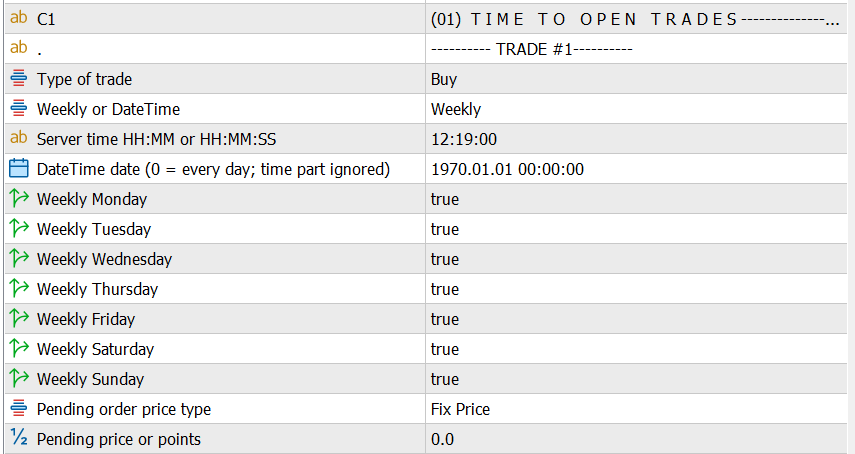
In the table, N means the block suffix 1, 2, 3, 4 or 5. For example, TradeTypeN covers TradeType1 through TradeType5. Each row applies independently to all five blocks.
| Input | Default | Explanation |
|---|---|---|
TradeTypeN — Type of trade |
None | Disables the block or chooses Buy, Sell, Buy Stop, Buy Limit, Sell Stop or Sell Limit. Configure this last when preparing a new schedule. |
ScheduleN — Weekly or DateTime |
DateTime | Chooses whether weekdays or the date/daily rule controls the calendar. |
TimeToExecuteN |
#1 08:00:00; #2 10:00:00; #3 12:00:00; #4 14:00:00; #5 16:00:00 | Broker-server time in HH:MM or HH:MM:SS. This supplies the time even when TradeDate contains its own time. |
TradeDateN |
0 | DateTime only: 0 means every day; a selected date means one calendar-date occurrence. The time portion of this field is ignored. Weekly ignores the entire field. |
MondayN |
true | Weekly only: allow Monday’s target. |
TuesdayN |
true | Weekly only: allow Tuesday’s target. |
WednesdayN |
true | Weekly only: allow Wednesday’s target. |
ThursdayN |
true | Weekly only: allow Thursday’s target. |
FridayN |
true | Weekly only: allow Friday’s target. |
SaturdayN |
false | Weekly only: allow Saturday’s target if enabled and the broker can trade. |
SundayN |
false | Weekly only: allow Sunday’s target if enabled and the broker can trade. |
PendingPriceTypeN |
Fixed price | For pending orders, interpret PendingOrderPrice as an absolute price or a point distance. Market Buy/Sell ignore these pending settings. |
PendingOrderPriceN |
0 | Absolute pending price or point distance according to PendingPriceType. A positive usable value is required for a pending request; 0 is not an automatic market price. |
PaddingSeconds |
60 | Shared grace period for all five blocks, in seconds; valid range 0–86400, inclusive. |
A zero date may appear in MetaTrader as 1970.01.01 00:00:00. In DateTime mode this zero value means every day; in Weekly mode the date is ignored.
Section-title and blank separator strings are layout labels, not strategy parameters.
Pending-order price rules
| Order type | Fixed-price requirement in Time Trader | Point-distance calculation |
|---|---|---|
| Buy Stop | Above current Ask | Ask + integer distance × symbol point |
| Sell Limit | Above current Ask | Ask + integer distance × symbol point |
| Sell Stop | Below current Bid | Bid − integer distance × symbol point |
| Buy Limit | Below current Bid | Bid − integer distance × symbol point |
The point-distance value is truncated to an integer, not rounded. Use a positive whole number of points to avoid ambiguity. A symbol point is the platform’s point size; it is not always one pip.
Illustration: if Ask is 1.10020, Bid is 1.10000 and the symbol point is 0.00001, a 100-point distance gives 1.10120 for Buy Stop/Sell Limit and 1.09900 for Sell Stop/Buy Limit. These are arithmetic examples only. Quote changes, price normalization, broker minimum distance, permitted order types and market sessions can still prevent acceptance.
A point-based price is calculated from the quotes at each submission attempt. A later retry may therefore request a different price. A fixed-price setting remains the same requested level, but can become invalid if the market moves across it. One fixed number also applies to every pair in multi-pair mode, so do not assume a price appropriate for one symbol is valid for another.
Worked Schedule Setups
Repeat on business days
- Leave Trade #2–#5 at None.
- Set
Schedule1 = WeeklyandTimeToExecute1 = 08:00:00. - Enable Monday1 through Friday1; leave Saturday1 and Sunday1 false.
- Set TradeDate1 to any value or leave 0—it is ignored in Weekly mode.
- Configure lot size, limits and exits, then choose
TradeType1 = Buyfor a demo test.
This asks for one buy-family submission opportunity on each selected day. It does not require the previous day’s position to be closed, but entry limits may prevent another request.
Repeat every calendar day
Set Schedule1 = DateTime, TradeDate1 = 0 and the desired TimeToExecute1. Weekday flags do not exclude weekends in this mode. For weekday-only trading, use Weekly instead.
Trade on one selected date
Set Schedule1 = DateTime, choose a future calendar date in TradeDate1, and enter the desired server time in TimeToExecute1. Only the date component of TradeDate1 is used. Check that the target shown on the dashboard is correct before enabling automated trading.
Submit a pending order
Choose a pending TradeType, its schedule and time, then select either a fixed price or a positive point distance. Confirm broker stop-distance requirements. After successful placement, manage or cancel the pending order deliberately; it is not cancelled just because PaddingSeconds ends.
Common Settings: Use the Functions Glossary
The shared guides below explain the common controls in detail. This manual keeps only their purpose and the Time Trader exceptions; it does not repeat the shared input inventories.
Multi-pair trading
Apply the same five schedules to the configured broker symbols. Completion and retry state remain separate for each block/pair, but shared management can group trades. Use exact broker symbol names.
General direction, sizing and trend filter
These controls set permitted trade direction, volume, spread restrictions and optional market-condition filtering. The trend filter qualifies a scheduled entry; it does not choose its direction. In Time Trader, Both Side and Any Single Side allow independent scheduled entries despite existing positions, subject to other limits—they are not one-position locks. Long Side Only and Short Side Only still restrict the corresponding order families.
Initial-entry stop filters
Exposure, daily and candle limits can prevent a new scheduled initial entry; they do not automatically close existing positions or cancel pending orders. Limits are rechecked for each due block, so accepting one block can prevent the next. Accepted pending orders also affect Time Trader’s entry counters before filling.
Trade time and broker sessions
The common opening-session inputs (EnableTime, Trade_Time_For, time-group strings and general weekdays) are not exposed in this layout, and the embedded general opening-session switch is off. Configure opening times through the five Weekly/DateTime blocks instead. Broker-session checks remain separate; an enabled closing-time interval can also block scheduled entries. The linked guide explains the shared function, not a replacement schedule for Time Trader.
News stop filter
News filtering can pause eligible entries around selected events. It does not move a schedule or extend its padding, and does not automatically cancel an accepted pending order. The news GMT offset aligns calendar data, not the block’s server time. Confirm currency coverage for multi-pair use and test a real demo stop window; backtesting alone does not verify live calendar downloads.
Loss-side grid
Loss-side grid adds exposure after adverse movement.
Time Trader’s recovery default is Grid (Loss Side). Select TradeRecoveryType = Disable for scheduled entries without recovery. Grid can rapidly increase exposure and does not guarantee recovery. Time Trader’s directional strategy signals remain false: enabling GridTradeOnlyInSignal or its profit-side counterpart blocks signal-dependent grid entries. Do not assume signal-dependent lot modes obtain a signal from a scheduled Buy or Sell.
Profit-side grid
Profit-side grid adds after favorable movement.
Shared grid controls
Shared grid controls coordinate counts, spacing zones and supported trade-pair closing.
Martingale
Martingale changes later entry volume following losses. Neither shared grid controls nor martingale is a guaranteed loss or drawdown limit. Scheduler completion preservation does not promise preservation of martingale or other management state.
Take profit, stop loss and currency exits
Choose the exit calculation and managed trade scope deliberately. Virtual exits need the EA running; hard broker-side stops are separate. Independent schedules do not create separate exit baskets: average or currency rules can manage several scheduled entries together.
Partial closing
Partial closing reduces position volume in stages, subject to broker volume rules and platform/account compatibility. Demo-test it with the intended scheduled trades and account type.
Additional close filters and Stop & Kill
Time-based closing and account/profit/loss controls can close the managed group or stop entries when their conditions are met. They are not broker- or prop-firm compliance guarantees. A closing-time window is not a sixth opening schedule and can block new scheduled entries. Time Trader supplies no opposite directional signal, so CloseTradeOnOppsiteSignal does not turn a later opposite schedule into a close instruction.
Break-even and trailing
These rules adjust managed stops as price moves. Confirm their trade scope and broker stop/freeze restrictions on demo; their point distances are unrelated to schedule padding.
EA configuration
Use the common configuration to identify and manage the EA’s trade group. Distinct MagicNumbers help separate management but do not coordinate schedule completion between instances. Activation fields, if present, belong to the installed licensing workflow.
Display information
Use display settings to arrange the dashboard.
Time Trader Dashboard and Next Trigger
Reading Next Trigger
The dashboard’s Next Trigger entry shows the nearest outstanding server timestamp, #block and symbol across the configured pair list. It is a calendar target, not a promise that all filters currently allow trading.
- An unconsumed target remains visible while its grace window is open, even if an entry filter blocks it.
- Successful acceptance or expiry advances the target.
- Equal timestamps prefer the lower block number, then the earlier pair-list entry for the displayed target.
- None means there is no outstanding target: blocks may all be disabled, Weekly may have no selected days, or selected-date schedules may be consumed/expired.
One dashed slate-gray vertical line marks the same global-nearest target on the current chart. It is not one line per block or per pair. Its tooltip identifies the target time, block and symbol. Another block or pair can keep the same visible timestamp after a successful entry, so the line does not always visibly move.
The line remains when DisplayInfo is false. It is suppressed in nonvisual testing. MT5’s custom lifecycle removes and recreates it during reinitialization; do not assume identical cleanup behavior for the reviewed MT4 wrapper. See the dashboard glossary for the general display fields.
Duplicate Protection, Timeframes and Restarts
Schedule completion and retry timing are memory belonging to an EA instance, not durable history reconstructed from open positions. Closing a trade is not the same as resetting the instance.
| Event | Behavior to rely on |
|---|---|
| Repeated tick/timer checks in an uninterrupted session | An accepted block/pair occurrence remains consumed; a failed submission retains its retry throttle. |
| MT5: change chart timeframe, keep the same chart symbol | Scheduler completion, attempt state and the original pair mapping are preserved by the custom lifecycle path. This promise is limited to scheduler state, not every inherited management counter. |
| MT4: change chart timeframe | Do not rely on the MT5 preservation policy. The reviewed MT4 lifecycle does not run the product’s custom deinitialization path, so the preservation latch is not set. A still-open occurrence may submit again after reinitialization. |
| Change chart symbol | Scheduler state resets, including on MT5. |
| Change inputs, remove/re-attach, recompile or restart terminal | Treat this as a fresh scheduler session. An occurrence still inside padding may submit again. |
| Run another chart/instance | Instances do not share completion memory. Distinct MagicNumbers help separate management, but do not coordinate schedules. |
For operational safety, avoid lifecycle changes during an open grace window. Before reconnecting or reattaching, inspect orders and pending orders as well as the intended schedule. A one-date setup is not a durable once-ever guarantee across restarts.
Quick Setup Checklist
- Download or update the correct MT4/MT5 file and install it in the terminal.
- Use a demo account and check automated-trading permission, broker server time, symbol point size, volume step and market sessions.
- Keep unused TradeType blocks at None. Configure a single test block first.
- Choose Weekly, daily DateTime/0, or selected-date DateTime. Confirm the Next Trigger timestamp.
- Choose fixed or balance-based volume and set exposure/candle/daily limits deliberately.
- Select recovery Disable unless grid or martingale is explicitly part of the test. Review virtual versus hard stops.
- If using news filtering, follow the provider and WebRequest guide, verify broker GMT and confirm a demo stop window.
- Test acceptance, an intentionally blocked opportunity, retry behavior, expiry and pending-order handling. Avoid changing inputs inside the grace window.
- Save the tested settings with a clear platform/version name. Do not assume older six-slot files are compatible.
Troubleshooting
| Symptom | What to check |
|---|---|
| Nothing is scheduled | All five TradeTypes default to None. Also check Weekly weekday switches and an expired/consumed selected date. |
| EA fails to initialize | Check active time strings and PaddingSeconds bounds in Experts/Journal. Also inspect activation, symbol-data and ordinary platform errors. |
| Next Trigger appears but no order opens | Check trading permissions, connection, quotes, direction, spread, news, count/candle limits, trend filter, closing interval, Stop & Kill and broker session rules. A visible target does not mean the entry gates passed. |
| DateTime trades on an unwanted weekday | DateTime ignores weekday switches. Use Weekly for weekday selection. |
| Date selection uses the wrong hour | The hour comes from TimeToExecute, not the time component of TradeDate. Check broker time, not computer time. |
| A missed schedule does not run later | An expired window is intentionally skipped. Increase padding only after considering stale-entry and overlap risks. |
| Pending order rejected | Check a positive price/distance, the exact Bid/Ask-side rules, symbol points, integer distance, broker minimum stops, permitted order type, margin and volume. |
| Pending order remains after padding | Expected: padding limits submission eligibility, not the accepted pending order’s lifetime. |
| Two blocks do not both execute | Check per-entry capacity/candle rechecks, directional restrictions and whether the first acceptance used the remaining limit. |
| More than one position/request appears | Multiple blocks and multiple pairs may each submit. Also inspect recovery mode, independent instances, and whether an in-window restart or MT4 timeframe change reset memory. |
| A trade repeats after restarting | Completion is session-only. A restarted occurrence still within padding can be eligible again. |
| Dashboard hidden but a line remains | Expected: DisplayInfo hides the dashboard, not the next-trigger line. |
| Opposite-signal close does nothing | Time Trader does not generate that signal. Use the supported time, TP/SL or other closing rules instead. |
| News times differ from schedule expectations | Verify the news broker-GMT offset; it does not convert the block’s server-time input. Test live news behavior on demo, not just in the tester. |
For support, provide platform, EA version, broker/account type, exact symbol, server timestamp, block settings and relevant Experts/Journal messages. Include whether the EA was restarted, reattached, edited or moved to another timeframe during the grace window. Submit a problem report without passwords or account secrets.
Helpful Guides
Risk Notice
Trading financial instruments involves a high level of risk and may not be suitable for all investors. Past performance is not indicative of future results. MeetAlgo provides automated trading software and tools for educational and automation purposes only. MeetAlgo does not provide investment advice, portfolio management services, or any regulated financial services. Always consult a licensed financial advisor before making trading decisions.
Grid and martingale can rapidly increase exposure and may cause loss of the account. Time-based execution, news filtering and risk controls cannot guarantee acceptance, fills, loss limits or profit. Test the complete configuration on demo under the intended broker conditions before considering live use.

