
News Stop Filter
The News Stop Filter helps an Expert Advisor avoid opening eligible trades around selected economic news events. Depending on the product settings, it can pause initial entries or supported additional entries before and after low-, medium-, high-impact, or custom news events.
The filter uses the scheduled event time, currency, impact, and event name. It does not require the actual economic result to stop trading around an event.

The exact input order may differ between products and versions. Current versions include the News Source setting described below.
Step #1 — Select the News Source and Allow WebRequest
The EA can use one of two manually selected news providers:
- Forex Factory — default source
- Investing.com — optional source
The EA uses only the source selected in News Source. It does not automatically switch to the other provider when a download fails.
WebRequest URLs
Add the URL for the provider you select:
- Forex Factory:
https://nfs.faireconomy.media - Investing.com:
https://sslecal2.investing.com
You may add both URLs if you plan to switch providers later. Add the base URLs exactly as shown. Do not add only the Forex Factory or Investing.com homepage.
How to allow the URL in MT4 or MT5
- Open your MetaTrader terminal.
- Go to Tools → Options.
- Open the Expert Advisors tab.
- Enable Allow WebRequest for listed URL.
- Add the URL for your selected provider.
- Click OK.

This permission belongs to the MetaTrader terminal, not to one EA. Configure it separately on every computer, Windows account, terminal installation, or VPS where you use the news filter.
Adding the URL only permits downloads. You must also select the source and enable the news filter in the EA inputs.
Step #2 — Set the Correct Broker GMT Offset
The provider may publish event timestamps with its own timezone offset. The EA converts the source time to UTC and then converts it to the broker server time used on the chart.
If the broker GMT setting is wrong, news lines may appear at the wrong chart time and the EA may block entries at the wrong moment.
Option A — Auto Shift
With GMT Mode (For News) = Auto Shift, the EA detects the broker offset after receiving a fresh broker quote. Detection can be delayed while the market is closed, the terminal is disconnected, or no new quote is arriving.
If the displayed news time does not match the broker chart time, use Manual Shift and enter the broker offset yourself.
Option B — Manual Shift
With GMT Mode (For News) = Manual Shift, enter the broker server's UTC/GMT offset in Manual GMT Offset (For News).
0= GMT+02= GMT+23= GMT+3-5= GMT-5
How to find the broker GMT offset
- Open
https://time.is/UTCand check the current UTC time. - Check the broker server time in Market Watch or on the chart.
- Calculate the hour difference between broker time and UTC.
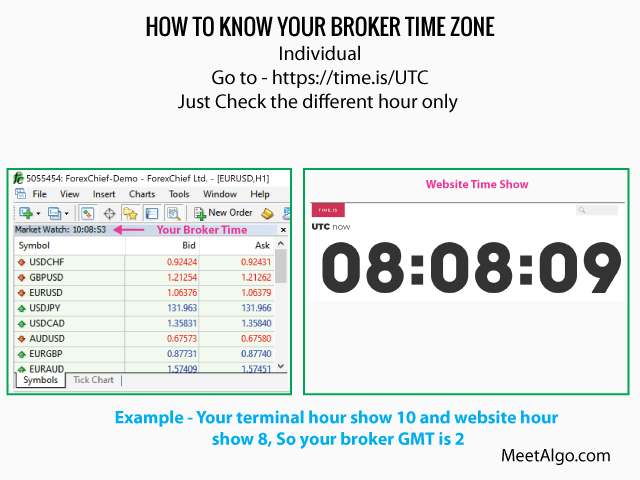
Example: UTC is 10:00 and the broker server is 13:00. The broker offset is GMT+3, so Manual GMT Offset should be 3.
Your computer's local timezone is not necessarily the broker timezone. For example, an event displayed at 16:00 in Dhaka (GMT+6) appears at 13:00 on a GMT+3 broker chart. Both times represent the same event at 10:00 UTC.
Step #3 — Understand the News Filter Inputs
Input names can vary slightly between products, but the common news-filter controls work as described below.
Enable News Filter
Off: the news filter is disabled.
On: the EA blocks eligible new entries during the configured news windows.
News Filter Use For
For Initial Trade: the news filter blocks the first trade entry during news time. Additional grid, recovery, or hedge actions follow the product's existing rules.
For All Trade: the news condition is also applied to supported additional-entry logic in that product. Because trade management differs between products, check the product manual before assuming that every recovery or hedge action is blocked.
News Source
Forex Factory: uses the Forex Factory current-week JSON schedule and is the default selection.
Investing.com: uses the Investing.com calendar endpoint.
There is no automatic provider fallback. If you change the source, confirm that its WebRequest URL has been allowed in MetaTrader.
GMT Mode (For News)
Auto Shift: detects the broker offset after a fresh quote.
Manual Shift: uses the value entered in Manual GMT Offset.
Manual GMT Offset (For News)
This value is used when Manual Shift is selected. Enter the broker server offset, not the computer's local offset.
Current Chart Currencies to Filter News
True: filters news for the currencies in the current chart symbol. On EURUSD, this normally means EUR and USD events.
False: uses the currencies entered in Select Currency to Filter News.
Select Currency to Filter News
Enter currency codes separated by commas, for example:
USD,EUR,GBP
This input is used when Current Chart Currencies to Filter News is False.
LowNews, MediumNews, and HighNews
Enable the impact levels that should block eligible entries:
- LowNews — low-impact events
- MediumNews — medium-impact events
- HighNews — high-impact events
Provider impact classifications may differ. Holidays and non-economic events are not treated as high-impact timed trade events by this filter.
Pause Before and Pause After
Current EAs can provide separate before/after periods for low, medium, high, and custom news.
Pause Before: how many minutes before the selected event the EA starts blocking eligible entries.
Pause After: how many minutes after the selected event the EA continues blocking eligible entries.
Example: if a high-impact event is at 14:00, Pause Before High News is 30, and Pause After High News is 20, the high-news stop window is 13:30 through 14:20.
CustomNews
Enable this option to filter events by words in the event name. Custom matching still follows the selected currency and news-event eligibility rules.
Put News Event (Separate by Semicolon)
Enter custom event words or names separated by semicolons:
Interest Rate;Press Conference;Nonfarm Payrolls
Use meaningful words from the event name. Empty entries are ignored.
How to find the correct event name
Check the event wording from the same provider selected in the EA. Provider names can differ, so review custom keywords when changing the News Source.
- For Forex Factory, review its calendar event title.
- For Investing.com, review the Investing.com event title.
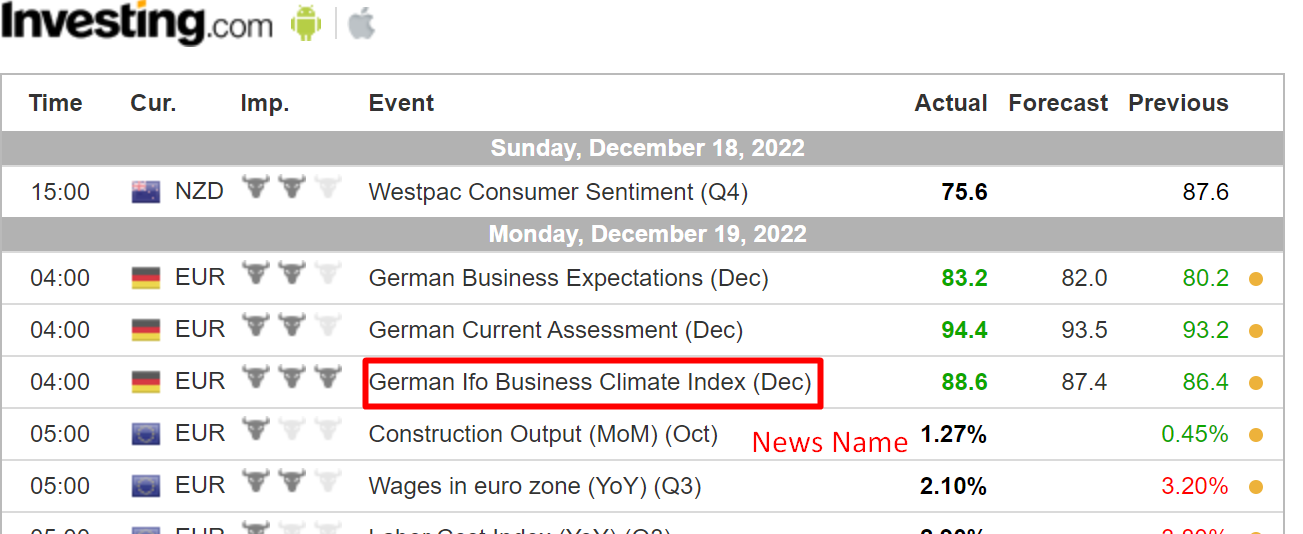
The image above is an Investing.com example. Forex Factory event wording may be different.
Show News Line on Chart
True: displays lines for eligible news events.
False: hides news lines.
The filter can still be active when lines are hidden. A future event can also be outside the visible chart range. After a chart timeframe change, current rebuilt versions restore the news lines from saved calendar data without requiring another web download.
Shared Calendar and Download Behavior
Rebuilt MeetAlgo EAs that use the common calendar share one saved calendar file per provider through MetaTrader's Common Files storage on the same Windows account.
- A usable saved schedule is loaded when an EA is attached.
- A successful schedule normally becomes due for refresh after 24 hours, or earlier when its coverage ends.
- Multiple charts do not need to download the same provider data simultaneously.
- One EA writes the provider file at a time; other EAs continue using valid saved data.
- Forex Factory supplies the current week's schedule. The previous week's schedule is not reused after the new UTC week begins.
- The Investing.com response has shorter validated coverage and should not be described as a full weekly file.
- The cache is local to that Windows account. Another computer or VPS downloads and stores its own copy.
The calendar status shown on the chart includes the selected provider and update time. A cache label means saved data was reused; it does not by itself mean an error occurred.
What Happens When News Data Is Unavailable?
When the news stop filter is enabled but no usable calendar is available, common news-filter EAs block eligible new entries as a safety measure. The calendar failure does not itself close existing trades.
For News Trading EA's automatic news-entry mode, unavailable calendar data does not create an entry signal.
Provider access is external and cannot be guaranteed. A website may return HTTP 403, change its format, become unavailable, or apply rate limits. The EA does not bypass provider protection and does not switch automatically to another provider.
Example Setup
- Allow WebRequest URL =
https://nfs.faireconomy.media - News Source = Forex Factory
- Enable News Filter = On
- News Filter Use For = For Initial Trade
- GMT Mode = Manual Shift
- Manual GMT Offset = your broker's actual offset
- Current Chart Currencies to Filter News = True
- LowNews = False
- MediumNews = True
- HighNews = True
- Set the required medium/high pause-before and pause-after periods
- Show News Line on Chart = True
This example filters medium- and high-impact events for the current chart currencies and blocks initial entries during the configured windows.
Troubleshooting
HTTP 403 or download error
- Confirm that the selected provider's exact base URL is allowed in MetaTrader.
- Confirm that the terminal or VPS has internet access.
- If Investing.com rejects the request, you may manually select Forex Factory and allow its URL. The EA does not switch automatically.
News time or line is incorrect
- Compare UTC time with the broker server time.
- Confirm that Manual GMT Offset uses the broker offset.
- If using Auto Shift, wait for a fresh broker quote.
No visible news lines
- Confirm that Show News Line is True.
- Check the selected currencies, impact levels, and custom keywords.
- Check whether future event times are outside the visible chart area.
- Check the calendar status text for provider, update time, or an unavailable message.
Important Notes
- The news filter depends on external data and is not guaranteed to remain available at all times.
- The filter is disabled when Enable News Filter is Off or when the product's news source is disabled.
- Web calendar downloading is not used during MetaTrader Strategy Tester or optimization.
- Old product binaries do not receive shared-code improvements automatically. Install the applicable rebuilt product version.
- Individual products can use the common filter differently for grid, recovery, hedge, multi-pair, or automatic news-entry logic. Follow the product-specific manual when it gives additional rules.
- Test the selected provider, GMT conversion, news lines, and stop window on a demo account before live use.
Final Check Before Live Use
- The selected provider's WebRequest URL is allowed.
- The same provider is selected in News Source.
- Enable News Filter is On.
- The broker GMT offset is correct.
- The required currencies and impact levels are enabled.
- The before/after periods are correct for each selected impact level.
- News lines appear at the correct broker chart time when Show News Line is enabled.
- The EA blocks the intended entries during a demo news window.

