
USER GUIDE – Global Trade Plan EA

How to Use
Step 1: Install & Activate EA
- After purchase, load the EA into your MT5 terminal.
- The EA requires a serial key to run.
🔑 Generate your key here:
👉 https://meetalgo.com/docs/how-to/how-to-purchase/generate-serial-key/
Step 2: Select Strategy & Setup
The EA comes with two strategies (more will be added in the future):
| Strategy Name | Pair | Timeframe | Setting File |
|---|---|---|---|
| Strategy 1 | XAUUSD | H1 | Default (No file needed) |
| Strategy 2 | XAUUSD | M15 | File No: 902 |
🔗 Download setting files:
👉 https://meetalgo.com/tools/setting-file/
🔹 Important Notes:
- Strategy 1 → Use default settings (no need to load any file)
- Strategy 2 → Must load the correct setting file (902)
- If using any other setup → always load the matching setting file
Step 3: Broker Digit Adjustment
By default, all optimized settings are based on 2-digit Gold pricing.
If your broker uses 3-digit pricing (e.g., Exness):
You have two options:
- Load a 3-digit setting file from the Setting Bank
- OR use a 2-digit setting file and set:
👉 Broker Digit Adjustment = GOLD (3-DIGIT)
The EA will automatically adjust all values accordingly.
Step 4: Time Configurations
Set your GMT Mode correctly:
- Auto Mode → Recommended (EA detects broker time automatically)
- Manual Mode → Set your broker GMT offset manually (e.g., +2, +3)
⚠️ This is very important because:
- The EA closes pending orders before market close
- Incorrect GMT may cause trades to remain open overnight or weekend
- This can lead to loss due to market gaps
Step 5: News Filter (Important for Scalping)
This EA works during high volatility, but major news events can be risky.
You can:
- Enable the News Filter, or
- Disable the EA manually during major news
🔹 Recommended Setting:
👉 Use Custom News Only
📘 Full setup guide:
https://meetalgo.com/docs/functions-glossary/initial-trade-section/filter-news-time/
Step 6: Maximum Spread Setting
- Default value = 0 (disabled)
- It is highly recommended to set this manually
🔹How to Set:
- Check your pair’s average spread
- Set Max Spread = 2× average spread
🔹Why Important:
- High spreads can cause bad entries and losses
- If spread exceeds limit, EA will avoid or delete pending orders
🔹Final Tips
- Always use a low spread broker (ECN recommended)
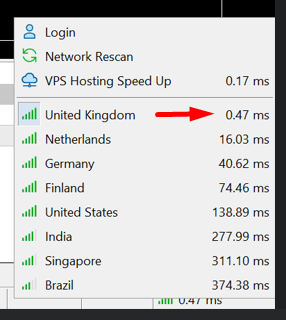
- Use a low-latency VPS (recommended: MQL5 VPS)

- Always match strategy + timeframe + setting file correctly
⚠️ Before Using This EA (Required Reading)
Before using this Expert Advisor, please read the following guide carefully.
This EA requires specific broker conditions and correct configuration to operate properly.
👉 Best Way to Use MeetAlgo Scalper EAs
🔗 https://meetalgo.com/best-way-to-use-meetalgo-scalper-eas/
Failure to follow the setup requirements explained in the guide may cause the EA to pause trading or not open trades.
⚠️ Latest Setting File
🔗 https://meetalgo.com/tools/setting-file/
Input Parameters
1. Lots Management
LotsType: Select the type of lot calculation method to use.
Risk Percentage: The EA automatically determines the lot size based on a percentage of your current account equity. Example: If you set this value to 2, the EA will use 2% of your account equity to calculate the trade lot size.
FixedLots: A constant lot size that remains the same for every trade, regardless of account equity or balance.
XBalance Lot Management
- The XBalance system allows the EA to automatically adjust lot size based on your account balance. This helps scale trading volume as your capital grows while maintaining controlled risk.
- XBalance: Defines the balance unit used for lot calculation.Example: If XBalance = 100 → every $100 is considered one unit.
- Lot Size Per XBalance: Specifies how much lot size is used per XBalance unit.
- XBalance Start From (0 = Disable)- Defines the minimum balance from which XBalance calculation will begin.👉 If set to 0 → feature is disabled (full balance is used)
👉 If set to a value (e.g., 1000) → only balance above this value is used for lot calculation - Initial Lots if < XBalance Start From: Fixed lot size used when your account balance is below the Start From value
How It Works: There are two working conditions:
Case 1: Balance Below Start Level
If your balance is below the value set in XBalance Start From:
👉 The EA will use a fixed lot size
👉 Defined by Initial Lots if < XBalance Start From
Example:
- XBalance Start From = 1000
- Current Balance = 900
- Initial Lots = 0.10
👉 EA will always trade with 0.10 lot
Case 2: Balance Above Start Level
If your balance is above the Start From value:
👉 The EA will calculate lot size based only on the extra balance
Formula:
Effective Balance = Current Balance − XBalance Start From
Lot Size = (Effective Balance / XBalance) × Lot Size Per XBalance
Example
- XBalance = 100
- Lot Size Per XBalance = 0.01
- XBalance Start From = 1000
- Current Balance = 1500
👉 Effective Balance = 1500 − 1000 = 500
👉 Lot Size = (500 / 100) × 0.01 = 0.05 lot
Important Notes
- XBalance allows dynamic scaling based on profit growth
- Start From helps protect initial capital before scaling begins
- If Start From = 0 → full balance is used directly
- Always ensure lot size matches your broker’s minimum/step requirements
- Max Lots (0-Mean Disable): You can set the Max Lots size for Both initial and Grid trade (0-Mean Disable). No trade will be open above this lot size.
2. EA Configurations
Select Strategy: This option allows you to choose the trading strategy used by the EA. Each strategy is designed for a specific timeframe and uses different trading logic.
📊 Available Strategies
ST1 (TF-H1)
Strategy optimized for the H1 timeframeST2 (TF-M15)
Strategy optimized for the M15 timeframe
🔧 Important Notes
Each strategy has its own TP, SL, and internal parameters
Changing the strategy will NOT automatically adjust TP, SL, or other settings
For best performance, always use the recommended setting file
⚠️ Recommendation
👉 After selecting a strategy, please load the correct setting file from our Setting Bank to ensure optimal results.
🔗 Setting Bank: https://meetalgo.com/tools/setting-file/
- Broker Digit Adjustment: This setting is used to handle broker-specific digit formats for certain trading pairs. Some brokers may use different digit formats for the same symbol. For example:
XAUUSD (Gold) may use 2-digit pricing on some brokers
Or 3-digit pricing on others (e.g., Exness)
How to Use
Check the list of available options (e.g., Gold – 3 Digit)
If your pair name and digit format match one of the listed options, select it
Otherwise, keep the setting at Default (Disable / Auto)
Example
If your broker uses:
👉 XAUUSD with 3-digit pricing → select GOLD (3-DIGIT)
If your broker does not match any listed option → keep Disable (Auto)
TakeProfit: Defines the target profit for each trade, measured in points.
StopLoss: Sets the initial stop-loss level in points to limit downside risk.
3. Break Even Setting
The Break Even function is designed to protect open profits by moving the Stop Loss to the entry price (or slightly beyond) once a trade has reached a defined profit level. This ensures that even if the market reverses, the trade will not result in a loss.
Parameters:
- BreakEven On – Enables or disables the Break Even feature.
- BreakEven Start – The profit distance (in points) from the entry price where Break Even activates.
- BreakEven Stop – The level (in points) to which the Stop Loss will be moved when Break Even is triggered.
📘 Example:
If BreakEven Start = 20 and BreakEven Stop = 5, when the trade reaches +20 points profit, the EA will move the Stop Loss to +5 points beyond the entry price — effectively locking in 5 points of profit.
4. Trailing Stop Setting
The Trailing Stop function allows the EA to dynamically move the Stop Loss in the direction of profit as the price continues to move favorably. This helps to lock in profit while reducing risk.
⚙️ Parameters
- Trailing On- Enables or disables the Trailing Stop function.
- Trailing Start- The minimum profit distance (in points) required before the trailing mechanism starts.
- Trailing Stop (%)- Defines the trailing step as a percentage of the Trailing Start value.
📘 How It Works
Once the trade reaches the defined Trailing Start, the trailing mechanism is activated. The EA then calculates the Trailing Step internally based on the percentage:
👉 Trailing Step = Trailing Start × (Trailing Stop % / 100)
As the price moves further into profit, the Stop Loss is adjusted step-by-step:
- Buy Trade: New StopLoss = Current Price − Trailing Step
- Sell Trade: New StopLoss = Current Price + Trailing Step
This process repeats automatically, moving the Stop Loss forward as profit increases, until:
- The Stop Loss is hit, or
- The trade is closed manually
📘 Example
- Trailing Start = 100 points
- Trailing Stop = 20%
👉 Trailing Step = 100 × 20% = 20 points
- When profit reaches +100 points, trailing starts
- For every additional 20 points, the Stop Loss moves forward accordingly
- This continues until the Stop Loss is hit
⚠️ Important Note
- In this EA, Trailing Step is not set manually
- It is automatically calculated using Trailing Stop (%)
- Other MeetAlgo EAs may allow manual step input, but here it is handled internally for simplicity and consistency
6. Time Configurations
The Time Configuration section allows you to control when the EA is permitted to open trades. This helps you align trading activity with specific market sessions or avoid low-volatility hours.
Parameters:
- Manual GMT Offset – Defines your broker’s GMT offset manually. This ensures trading hours align correctly with your local or desired trading time zone.
- Asian Session Start / End – Set the time range for the Asian trading session.
- Europe Session Start / End – Set the time range for the European trading session.
- American Session Start / End – Set the time range for the U.S. trading session.
- Trade on Monday–Friday – Allows you to enable or disable trading for specific weekdays.
By configuring these options, you can restrict the EA to operate only during high-liquidity periods or avoid unstable hours such as market openings or rollovers.
📘 Learn More:
For detailed information and examples on configuring trading sessions and time filters, see:
🔗 Trade Time Configuration – MeetAlgo Docs
7. Filter News Time
The Filter News Time setting allows the EA to temporarily pause trading during high-impact economic news events to avoid unexpected volatility and slippage.
Parameters:
- Use News Filter – Enables or disables the news filter feature.
- Stop Trading Before News (Minutes) – Defines how many minutes before a high-impact news event the EA should stop opening new trades.
- Resume Trading After News (Minutes) – Defines how many minutes after the news event the EA should resume normal trading operations.
- High/Medium/Low Impact Filters – Choose which levels of news impact (e.g., high only or all levels) will trigger the pause in trading.
When activated, the EA will automatically detect upcoming events (if your platform supports it) and delay trade execution until the specified safe window has passed.
📘 Learn More:
For detailed configuration examples and behavior explanations, see:
🔗 Filter News Time – MeetAlgo Docs
8. Trade Stop Filter
The Trade Stop Filter section allows you to manage and restrict when the EA is permitted to open new initial trades based on specific conditions.
These filters are designed to reduce overtrading, protect equity, and prevent new positions from being opened when certain limits are reached.
(Note: These filters apply only to initial trades.)
Purpose:
- Helps control risk exposure during drawdowns.
- Limits the number of active initial trades.
- Ensures trading stops under predefined account conditions.
You can configure filters such as:
- Maximum number of active initial trades.
- Daily profit or loss limits.
- Equity or balance protection levels.
- Maximum drawdown thresholds.
These conditions provide smarter control over trade initiation, ensuring your trading account operates within safe boundaries.
📘 Learn More:
For detailed configuration examples and parameter explanations, visit:
🔗 Initial Trade Stop Filter – MeetAlgo Docs
9. Trade Close Filter
The Trade Close Filter section provides advanced options for automatically closing trades under specific profit, loss, or time-based conditions.
This feature enhances risk management by allowing dynamic trade exits according to your defined performance or safety rules.
📘 Learn More:
For detailed use cases, parameter descriptions, and setup tips, visit:
🔗 Additional Close Filter – MeetAlgo Docs
10. Basic Configurations
The Basic Configurations section defines the essential operational parameters of the EA, including spread protection, slippage control, commission setup, and identification settings. These parameters help ensure the EA operates safely and efficiently under different broker conditions.
- Maximum Spread: Sets the maximum allowed spread (in points) for opening new trades. If the current market spread exceeds this limit, the EA will not execute any new orders until the spread returns below the specified value.
- CloseOrderOnSpread: When enabled, the EA will automatically delete any pending orders if the market spread rises above the Maximum Spread value. This prevents unwanted trade execution during high volatility or low-liquidity conditions.
- Custom Commission (USD per lot): Defines the commission cost per standard lot in USD. This parameter is mainly used for performance calculations or when your broker does not provide built-in commission data. (Most brokers automatically include commission, so this field can remain 0.)
- SLWithSpreads: When enabled, the EA adds the current spread value to the Stop Loss level. This helps to prevent trades from being prematurely stopped out due to spread widening, especially during high volatility.
- ResetSLforSlippages: If enabled, the EA will automatically reset and adjust the Stop Loss in case slippage occurs during order execution. This ensures that the Stop Loss remains at the intended level even when execution prices differ slightly from the requested price.
- Slippage: Sets the maximum allowable slippage (in points) during order execution. A lower value provides tighter control but may cause more order rejections in volatile markets.
- Magic: Defines a unique identifier (Magic Number) for the EA’s trades. This number allows the EA to distinguish its own orders from manually opened or other EAs’ trades on the same account.

