
Some MeetAlgo products can temporarily stop other EAs (external EAs) from trading, then restore them automatically after our EA finishes its job.
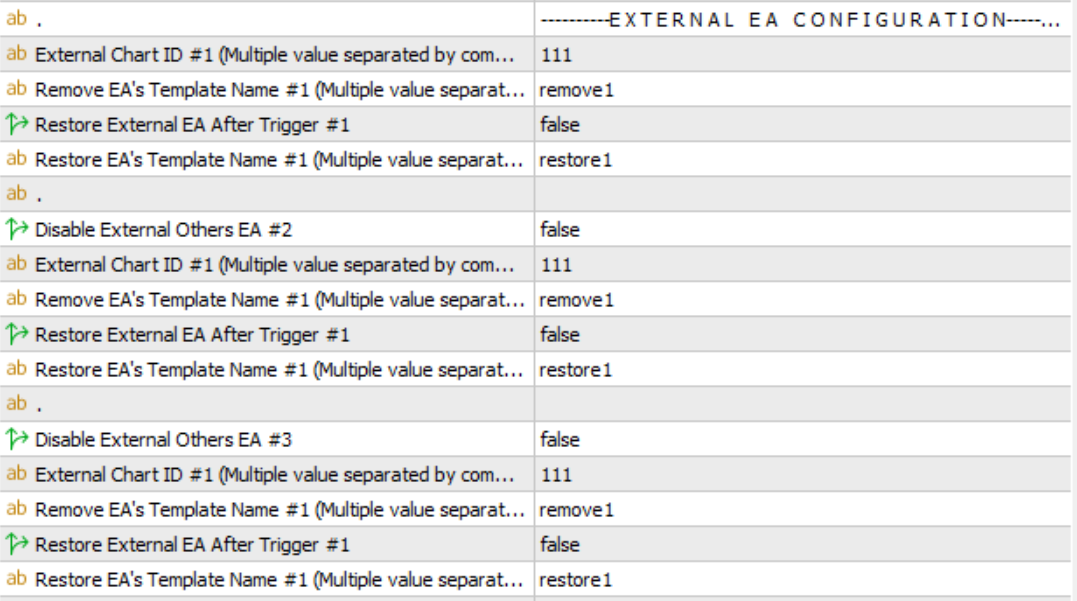
✅ EAs that include this feature
Why we use templates (not DLL)
MetaTrader Market rules don’t allow DLL usage. Without DLL, an EA cannot directly “remove/attach” another EA programmatically.
So our solution is: apply templates to the external EA charts.
How the system works (simple explanation)
You provide 3 inputs in our EA:
External Chart ID (the chart(s) where your external EA is running)
Remove EA Template Name (template that disables or removes the EA)
Restore EA Template Name (template that attaches/enables the EA again)
When disabling is needed, our EA applies your Remove template to those charts.
When everything is OK again, our EA applies your Restore template to bring back the external EA.
Before you start (Important)
What is “Chart ID”?
Every MetaTrader chart has a unique Chart ID. Our EA uses this ID to know which chart should be disabled/restored.
⚠️ Chart ID can change
If you close a chart and open it again, MetaTrader creates a new chart instance → Chart ID changes
So if you reopen the chart, you must get the new Chart ID and update the EA inputs.
Step #1: How to get your Chart ID
Each open chart has a unique Chart ID. You must collect the Chart ID for every chart where an external EA is running.
Option A (Recommended): Use “MeetAlgo Get Chart ID” indicator
Attach MeetAlgo Get Chart ID indicator to the chart.
The indicator will show the Chart ID in a text box.
Copy the Chart ID and save it somewhere.
Downloads
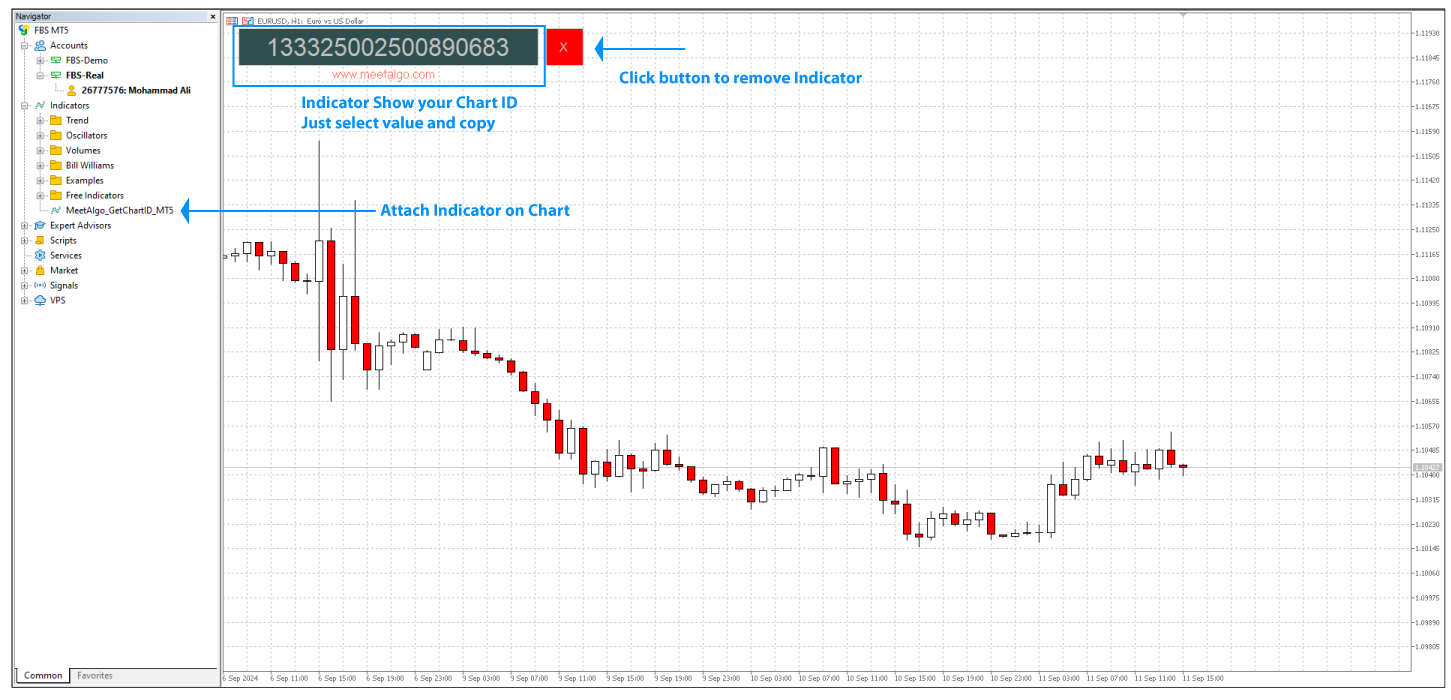
(You may repeat this for all charts where you run external EAs.)
Step #2: How to create the “Remove” template (Disable External EA)
This template is used when our EA needs to stop your external EA.
You can create it in two ways:
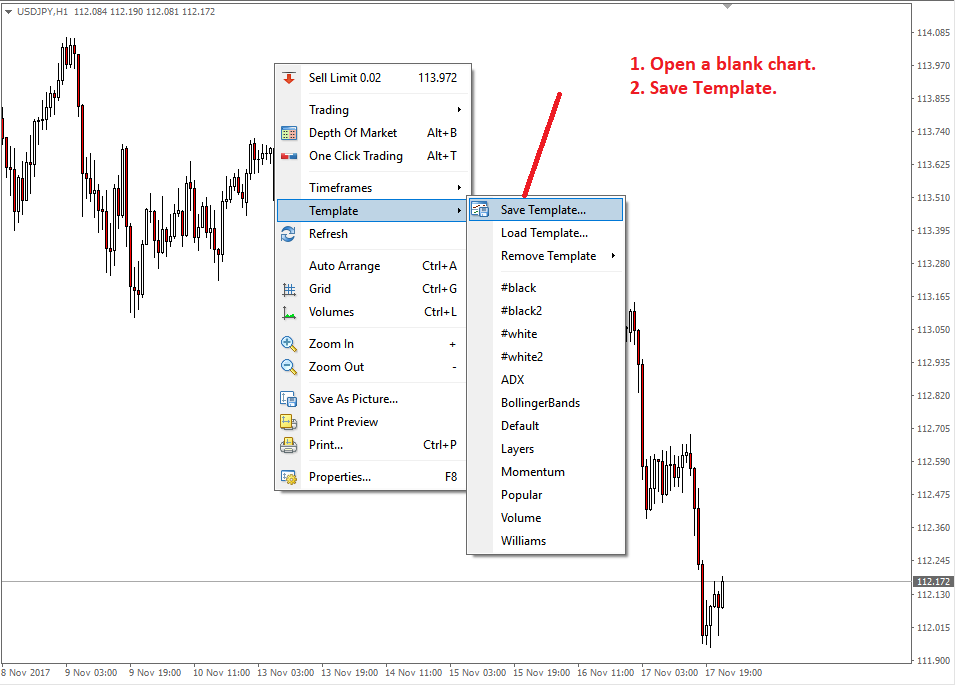
Method 1: Blank chart template (removes the EA from the chart)
Open the chart (same symbol/timeframe is fine).
Remove the EA from the chart (keep it blank).
Click: Charts → Template → Save Template
Name it something like:
remove1
✅ Result: When this template is applied, the EA is removed from that chart.
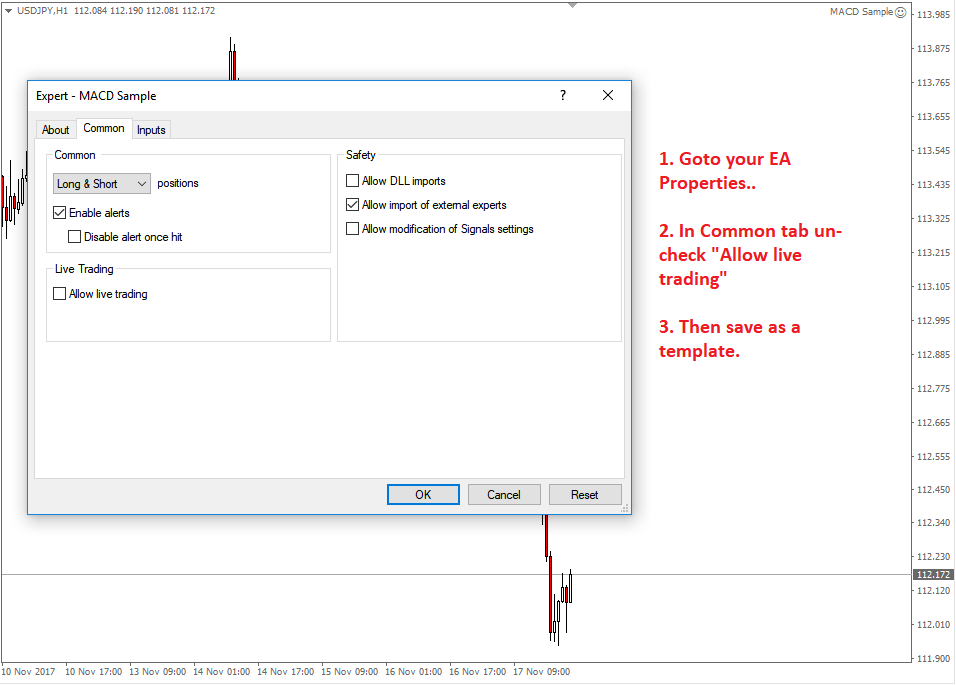
Method 2: Keep the EA but disable trading (no new trades)
Keep your external EA attached on the chart.
In EA settings, uncheck “Allow live trading”
Click: Charts → Template → Save Template
Name it something like:
remove1
✅ Result: EA stays on chart but cannot open trades.
Important rules for Remove template name

Template name is case-sensitive
Do not write
.tplextensionIf using multiple charts, you can use one template for all OR different templates per chart
Step #3: How to create the “Restore” template (Attach / Enable External EA again)
This template is used to restore your EA and allow it to trade normally again.
Attach your external EA to the chart with the correct settings.
Make sure “Allow live trading” is checked
Click: Charts → Template → Save Template
Name it something like:
attach1
Important rules for Restore template name
Template name is case-sensitive
Do not write
.tplextension
Understand your EA type (Mapping Supported vs Single Chart Only)
MeetAlgo products have two different input styles, depending on the EA:
A) Mapping Supported (Multiple Chart IDs)
If you see input text like:
“Multiple value separated by ‘;’ ”
then your EA supports multiple chart IDs + mapping using semicolon ;.
Example format:
External Chart ID:
ID1;ID2;ID3Remove Template:
remove1;remove2;remove3Restore Template:
attach1;attach2;attach3
✅ This type can match template to chart one-by-one.
B) Single Chart Only (No Mapping)
If the input does NOT mention:
“Multiple value separated by ‘;’ ”
then the EA is designed to use only one Chart ID per block.
Example format:
External Chart ID:
1111111Remove Template:
removeAttach Template:
attach
✅ No mapping here (one chart per block).
Step #5: Why some EAs have multiple “Disable External EA” blocks
Some EAs include multiple sections like:
Disable External Others EA #1
Disable External Others EA #2
Disable External Others EA #3
…etc.
Reason
MetaTrader inputs have a practical text-length limit.
If you have many charts (example: 10–20 charts), one single input may not be enough.
✅ Solution: Use multiple blocks
Put some Chart IDs in Block #1
Put the next Chart IDs in Block #2
Continue as needed
Multiple chart mapping examples (for Mapping Supported EAs)
Example 1 (Full mapping)
External Chart ID: ID1;ID2;ID3
Remove Template: remove1;remove2;remove3
Restore Template: attach1;attach2;attach3
Result:
ID1 → remove1 / attach1
ID2 → remove2 / attach2
ID3 → remove3 / attach3
Example 2 (Same template for all charts)
External Chart ID: ID1;ID2;ID3
Remove Template: remove1
Restore Template: attach1
Result:
All charts use remove1 to disable
All charts use attach1 to restore
Final Notes (Must follow)
Use semicolon ( ; ) only when the input says multiple values supported
No spaces around semicolon
✅ID1;ID2
❌ID1; ID2Template names are case-sensitive
Don’t type
.tplin input fieldsIf you reopen a chart, Chart ID changes → update the EA input again

