
User Guide – Ashmiza Trading EA
Input Parameters
Stop EA
If set to True, the EA will stop opening new trades.
However, if there are already open trades, the EA will continue to manage existing trades (such as trailing stop, take profit, or closing logic).
List of Strategy (Separate by “;”)
Enter the strategy name(s) you want to run.
You can add multiple strategies, separated by a semicolon (;).
Example:
You will find the complete list of available strategies in the Strategy List section below.
Check Minimum Balance
Each strategy requires a minimum balance to operate safely.
This feature helps protect your account from margin calls and ensures smooth EA operation.
Available modes:
Disable
-
- Minimum balance check is completely ignored.
- EA will open trades regardless of account balance.
- Very high risk – use only if you fully understand the risk.
Normal
-
- Trades open according to the strategy’s minimum balance.
- Lot size increases gradually as account balance increases.
- Recommended for safe trading.
Auto
-
- Trades open based on the strategy’s minimum balance.
- Lot size increases proportionally with balance growth.
Example:
-
- Required minimum balance:
$5,000 - Starting lot size:
0.01 - Balance becomes
$10,000→ Lot size becomes0.02
- Required minimum balance:
Max Spread (0 = Disabled)
Defines the maximum allowed spread for opening new trades.
-
If set to
0, the spread filter is disabled. -
If set to a value (e.g.,
30), the EA will not open trades when the spread exceeds this value.
Fixed Lots
This is the initial lot size used by the strategy.
⚠️ Important Notice:
Do NOT change this value.
All strategies are optimized using this fixed lot size. Changing it will alter the strategy’s behavior and performance.
Trade Stop Filter
The Trade Stop Filter allows you to control how many trades can be opened at the same time and to automatically stop the EA based on specific conditions such as daily limits, profit targets, or loss limits.
This feature helps protect your account by preventing over-trading and controlling risk during unfavorable market conditions.
👉 For full details and configuration examples, please read:
https://meetalgo.com/docs/functions-glossary/initial-trade-section/initial-trade-stop-filter/
News Stop Filter
The News Stop Filter allows the EA to stop opening new trades during high-impact news events using a news file.
This helps avoid sudden market volatility and unexpected price spikes caused by economic news releases.
👉 Learn how to configure the News Filter here:
https://meetalgo.com/docs/functions-glossary/initial-trade-section/filter-news-time/
Additional Close Filter
The Additional Close Filter allows you to close all open trades at a specific daily time based on a selected time zone.
This feature is useful for:
-
Avoiding overnight exposure
-
Closing trades before market sessions end
-
Daily risk control
👉 Detailed explanation and examples:
https://meetalgo.com/docs/functions-glossary/tp-sl-section/additional-close-filter/
Notification
The Notification system allows the EA to send alerts and push notifications based on account conditions.
You can receive notifications when:
-
Equity reaches a specific level
-
Floating loss exceeds a defined limit
-
Account-level notifications are enabled
Notification Input Parameters
💡 Note:
Setting any value to 0 means the notification for that condition is disabled.
How to Use
Follow the steps below carefully to use Ashmiza Trading EA correctly.
Step 1: Download the Setting File
From the List of Strategies table, download the setting file for your chosen strategy.
Each download includes:

The EA setting file
The backtest report
Example: If you want to use the strategy ST, download the ST setting file.
Step 2: Attach the EA to a Chart
Attach the EA to a trading chart.

Step 3: Load the Setting File
Load the downloaded setting file into the EA.
The setting file is located inside the Download folder provided with the strategy.
Step 4: Verify Key Settings
After loading the setting file, carefully verify the following:
Minimum Balance Mode
Select the Check Minimum Balance mode.
✅ Recommended modes:
-
-
Normal
-
Moderate
-
⚠️ High-risk modes:
-
-
Aggressive
-
Disable
-
These modes can cause margin calls and should only be used by experienced traders.
Step 5: Deposit Requirement
Each strategy requires a minimum deposit.
Example:
If a strategy requires a minimum deposit of $5,000, you must:
-
Use at least $5,000 balance
OR -
Use a cent account with an equivalent balance
Start Trading
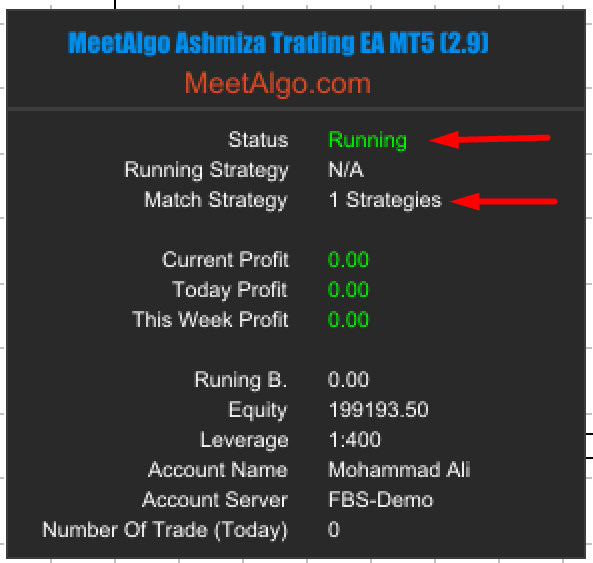
Once all setup steps are completed, the EA will begin operating automatically according to the selected strategy. If the EA Status shows “Running” and the Matched Strategy field displays any active strategy name, this confirms that the EA is working correctly and is ready to trade. The EA will open trades automatically when market conditions match the strategy rules. No manual action is required after successful setup.
⚠️ Most Important Rules (Must Read Before Using This EA)
-
Do NOT update the EA while trades are open.
-
Set Stop EA = True
-
Wait until all trades are closed
-
Then update the EA safely
-
-
Do NOT change the Magic Number if there are open trades.
-
Do NOT add, remove, or change strategy names while trades are open.
Failure to follow these rules may cause trade mismanagement or unexpected behavior.

