
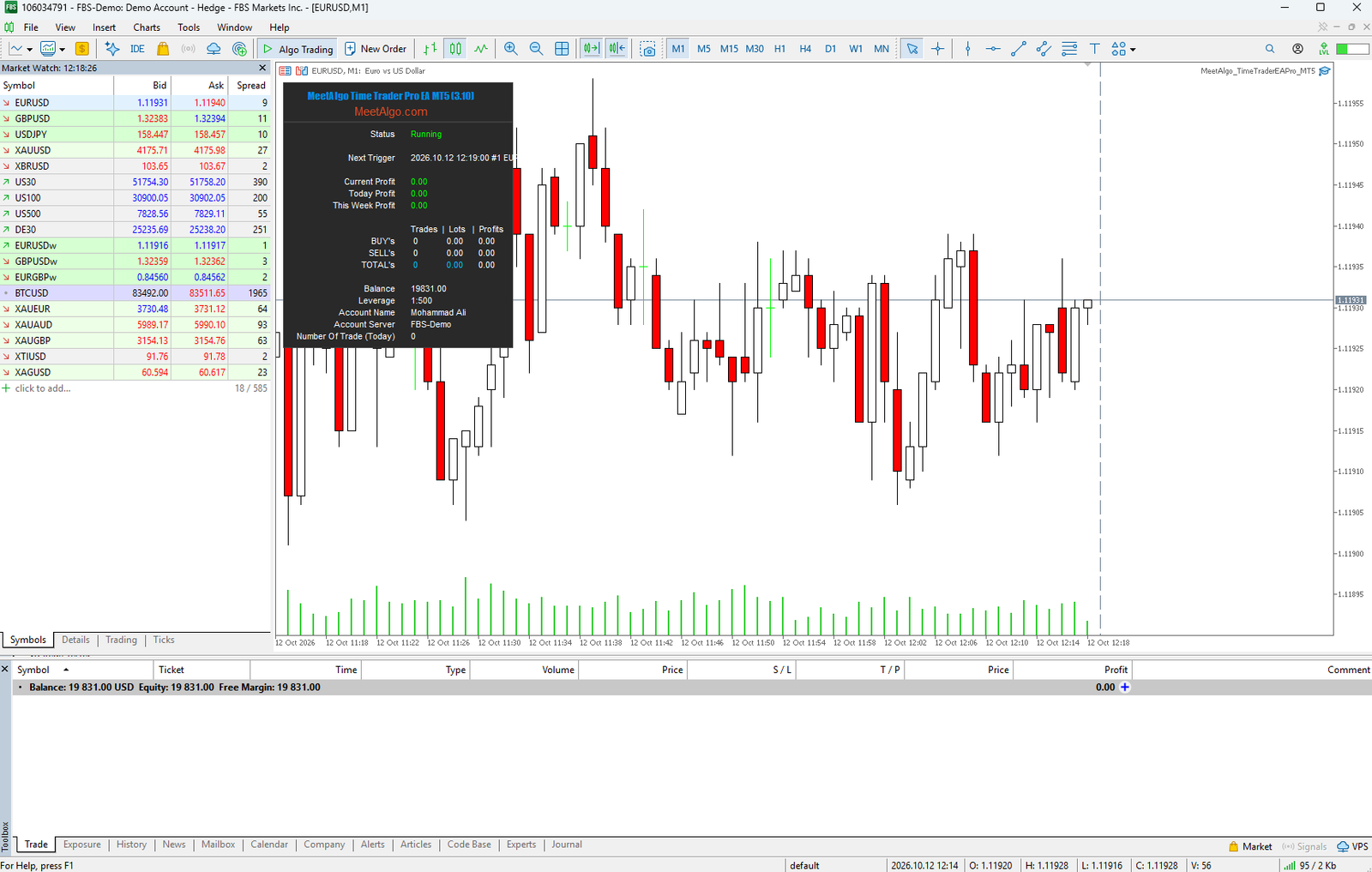
Time Trader EA Overview
Automate entries around the broker-server times you choose. Time Trader EA for MetaTrader 4 and MetaTrader 5 combines five independently configured trading schedules with position sizing, entry filters and the General Trading EA management tools. Schedule a market order or submit a pending order on selected weekdays, every day, or on a specific date.
Time Trader is a time-based execution tool—not an indicator signal strategy. You choose the direction, order type and schedule. The EA checks whether the request is due and whether the applicable trading restrictions allow it. A scheduled time is an opportunity to submit an order, not a guarantee of execution or a particular fill price.
Five independently configured trade blocks
Each block has its own order type, scheduling mode, time, date or weekdays, and pending-price settings. All five Type of trade inputs default to None, so no scheduled entry is enabled until you configure a block. The default times are 08:00, 10:00, 12:00, 14:00 and 16:00, expressed in broker-server time.
A later block can submit another initial order while an earlier position remains open, including on the same side. Independent schedules do not bypass running-trade limits, daily limits, candle restrictions or other enabled filters. They also do not create isolated management accounts: orders can be managed together by symbol, direction and MagicNumber.
How the Time-Based Entry Logic Works
Choose when each block is eligible
| Schedule | Behavior |
|---|---|
| Weekly | Repeat at the block’s time on the weekdays you enable. Its date input is ignored. |
| DateTime with TradeDate = 0 | Repeat every day at the block’s time. Weekday switches are ignored, so this includes weekends if the market and other controls permit trading. |
| DateTime with a selected date | Use the selected calendar date together with the block’s execution time. The time portion of the date field is ignored. Once the occurrence is accepted or its window expires, it is finished for that session. |
Use HH:MM or HH:MM:SS for the execution time. The scheduler follows MetaTrader’s broker/server clock, not your computer’s local time. News GMT settings do not convert the five schedule times.
Choose the order to submit
Select Buy, Sell, Buy Stop, Buy Limit, Sell Stop or Sell Limit, or leave the block at None. Market orders use the available market price when submitted. Pending orders can use an absolute price or a distance in the symbol’s points.
For point-distance pending orders, Buy Stop and Sell Limit use Ask plus the distance; Sell Stop and Buy Limit use Bid minus the distance. Fixed prices must be on the required side of the current quote and satisfy broker rules. A pending order accepted at the scheduled time may fill later—or may never fill.
Allow an execution window
PaddingSeconds provides a grace period after each scheduled time. Its default is 60 seconds, and both endpoints are included. The EA can submit a due request during that window when filters and broker conditions permit. Failed submissions can retry no more frequently than once per 10 server-clock seconds while the window remains open.
Expired windows are skipped rather than replayed later. An accepted market or pending submission completes that block’s occurrence; immediately closing the trade or cancelling the pending order does not rearm it in the same uninterrupted session. Padding is an entry window, not a pending-order expiration setting.
Trading Direction and Position Sizing
Restrict the allowed direction
Long Side Only permits buy-family requests, and Short Side Only permits sell-family requests. For Time Trader’s independent schedules, Both Side and Any Single Side do not prevent a later block from submitting merely because a position already exists. Use the explicit trade-count and exposure limits when you need to restrict additional scheduled entries.
Set the initial trade size
Choose fixed lots or balance-based sizing using XBalance and LotsizePerXBalance. Balance-based sizing changes volume with account balance; it is not a stop-distance-based percentage-risk calculation. Set a maximum lot size and review the spread limit as part of your configuration. Broker minimum volume, volume steps, margin and execution rules still apply.
See the general sizing and trend-filter guide. Its generic one-position-per-side explanation does not override Time Trader’s independent scheduled-entry behavior.
Common Trading Functions
Multi-pair trading
Trade the chart symbol or enable a semicolon-separated list of broker symbols from one chart. The same five blocks apply to each configured pair, with separate completion and retry state per pair. A single block can therefore produce requests on several symbols; plan total exposure accordingly. Enter exact broker symbol names, including prefixes or suffixes.
Read the multi-pair setup guide.
Initial trade limits and stop filters
Restrict new scheduled entries using running-trade limits, daily entry counts, daily/weekly/monthly profit or loss thresholds, same-candle restrictions, maximum spread and the optional ADX market-condition filter. A success in one block can consume capacity that another block needs. Accepted pending submissions also consume the schedule and update initial-entry counters.
These entry filters are not a command to close existing positions or a universal stop for grid trading. Read the initial trade stop-filter guide.
Trading times and days
Use each block’s Weekly or DateTime controls to define its calendar. They are separate from the common trade-time filter described elsewhere in the General Trading EA documentation. In this Time Trader input layout, the general opening-session filter is not exposed as an editable input; use the five schedule blocks rather than looking for the old global date filter or six-slot interface. Time-based closing has separate controls.
Economic news filter
Pause eligible new entries around selected economic events using currency, impact and custom-event filters. Configure the provider, WebRequest permission, broker GMT offset and before/after pause periods. These settings affect news filtering, not the meaning of your schedule times.
If a news restriction lasts beyond a scheduled block’s grace period, that occurrence is missed; the EA does not place it later simply because news filtering ends. News filters cannot eliminate gaps, volatility or slippage. Read the news-filter setup and troubleshooting guide.
Optional Grid and Martingale Management
Time Trader includes loss-side grid, profit-side grid, combined-grid and martingale modes. Loss-side grid adds positions as price moves against the managed position; profit-side grid adds as price moves in its favor. Martingale changes the size of subsequent entries according to the configured loss progression and reset rules.
Check the recovery setting before enabling any schedule. The supplied source default selects loss-side grid; the schedules being disabled by default does not mean recovery is disabled. Select Disable if you want to test scheduled entries without recovery trading.
Grid and martingale can increase volume, margin requirements and drawdown substantially. They cannot guarantee recovery and can cause loss of the trading account. Time Trader does not generate indicator signals: signal-gated grid options should not be used as if a schedule produced a buy/sell indicator signal.
Read about profit-side and loss-side grid behavior, martingale settings and shared grid controls.
Take Profit, Stop Loss and Exit Controls
Configure how positions close
Select supported individual or average-position TP/SL methods using points, price percentages, ATR or currency targets. Review whether a rule applies to an individual position, one direction, both directions or all configured pairs. Two independently scheduled entries may share an average-position exit.
EA-managed virtual exits require the terminal and EA to remain running and connected. Separate hard TP/SL inputs provide broker-side levels for initial orders where accepted; they are not interchangeable with virtual basket management. Check compatibility before combining hard stops with grid trading.
Read the TP/SL and profit/loss guide.
Partial closing, break-even and trailing
Partial closing supports staged reductions in position volume, subject to broker minimum lots and volume steps. Break-even and trailing settings manage stop levels after the configured price movement. They do not guarantee an exit price in fast markets.
See partial closing and break-even and trailing.
Additional closing filters
Configure a closing-time interval, its minimum-profit condition and trade scope, or supported Stop & Kill profit, loss, equity and drawdown conditions. Closing-time settings are separate from the five opening schedules. Opposite-signal closing is not an operative Time Trader strategy: this EA does not generate the directional indicator signals that feature requires.
Review the additional close-filter guide with this Time Trader-specific exception in mind.
EA Configuration and On-chart Display
Use distinct MagicNumbers for instances that should manage different trade groups. Independent instances do not share scheduled-completion memory. Slippage, trade comments, order checks and broker-session checks are available in the configuration section.
The dashboard shows the next outstanding trigger’s server timestamp, block number and symbol. A dashed vertical line marks that same next trigger on the current chart. It may identify another symbol in multi-pair mode. The line advances after acceptance or expiry and disappears when no target remains. Hiding the dashboard does not hide the trigger line.
Schedule completion is session memory, not permanent storage. MT5 preserves it across a same-symbol chart-timeframe change; removal, restart, recompilation, parameter changes or a symbol change can reset it. Do not rely on timeframe-change duplicate protection on MT4. Avoid changing the EA setup inside an active execution window.
See EA configuration and dashboard settings.
Before You Start
- Install the correct MT4 or MT5 release and review the five-block input layout.
- Confirm broker-server time, exact symbol names and the account’s netting or hedging behavior. Netting can combine or offset requests instead of creating separate positions.
- Leave unused blocks at None. Configure one schedule first, including its date mode and pending price if applicable.
- Set lot size, exposure limits and exits. Explicitly disable recovery if it is not part of your tested plan.
- Check automated-trading permissions and any news-download permissions. Keep the terminal running and connected; a timer does not create fresh broker time when quotes stop.
- Backtest and forward-test on demo, including blocked entries, retries, missed windows and lifecycle changes. Default values are not a recommended trading strategy.
Trading financial instruments involves a high level of risk and may not be suitable for all investors. Past performance is not indicative of future results. MeetAlgo provides automated trading software and tools for educational and automation purposes only. MeetAlgo does not provide investment advice, portfolio management services, or any regulated financial services. Always consult a licensed financial advisor before making trading decisions.
Custom Development
Need a different calendar, additional entry conditions or custom trade-management rules? Share your platform, schedule examples, order types and risk controls so MeetAlgo can assess the scope. Learn how to submit a custom development request.
White Label Service
Contact MeetAlgo to discuss branding or white-label customization for Time Trader EA. Customization, redistribution permissions, licensing and project scope must be agreed separately. Discuss your white-label project.
Any Questions?
Send your platform, EA version, broker symbol, server time and the relevant schedule inputs. Explain the expected action and include the Experts/Journal message if a trade did not submit. Contact MeetAlgo support.

