

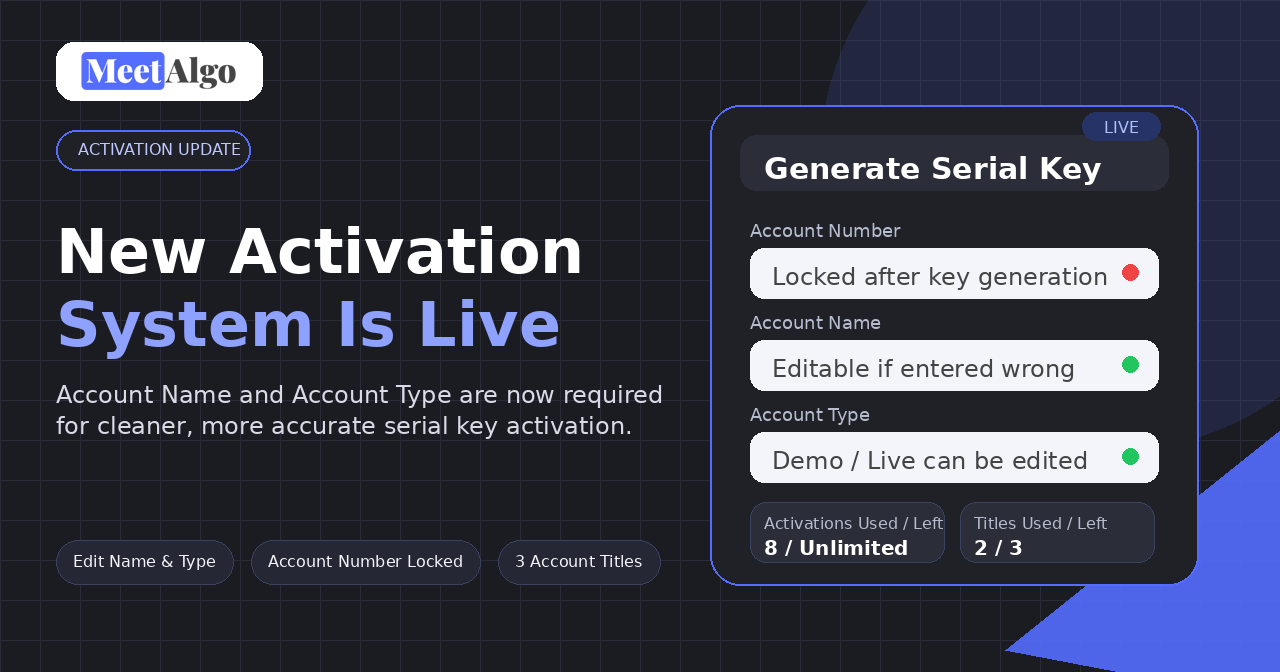
MeetAlgo has released a new activation system for product serial keys. This update adds stronger license protection and clearer account verification, so each key can be matched more accurately with the correct product, broker account number, account name, and account type.
This article explains why the new system was added, what information is required, what restrictions are now active, and how to fix the most common key errors after updating your EA or indicator.
Why MeetAlgo added the new activation system
The new activation system helps protect each customer license and reduce confusion when products are used across different trading accounts. The previous key system mainly depended on the broker account number. The new system adds more account details so the license can be checked more clearly.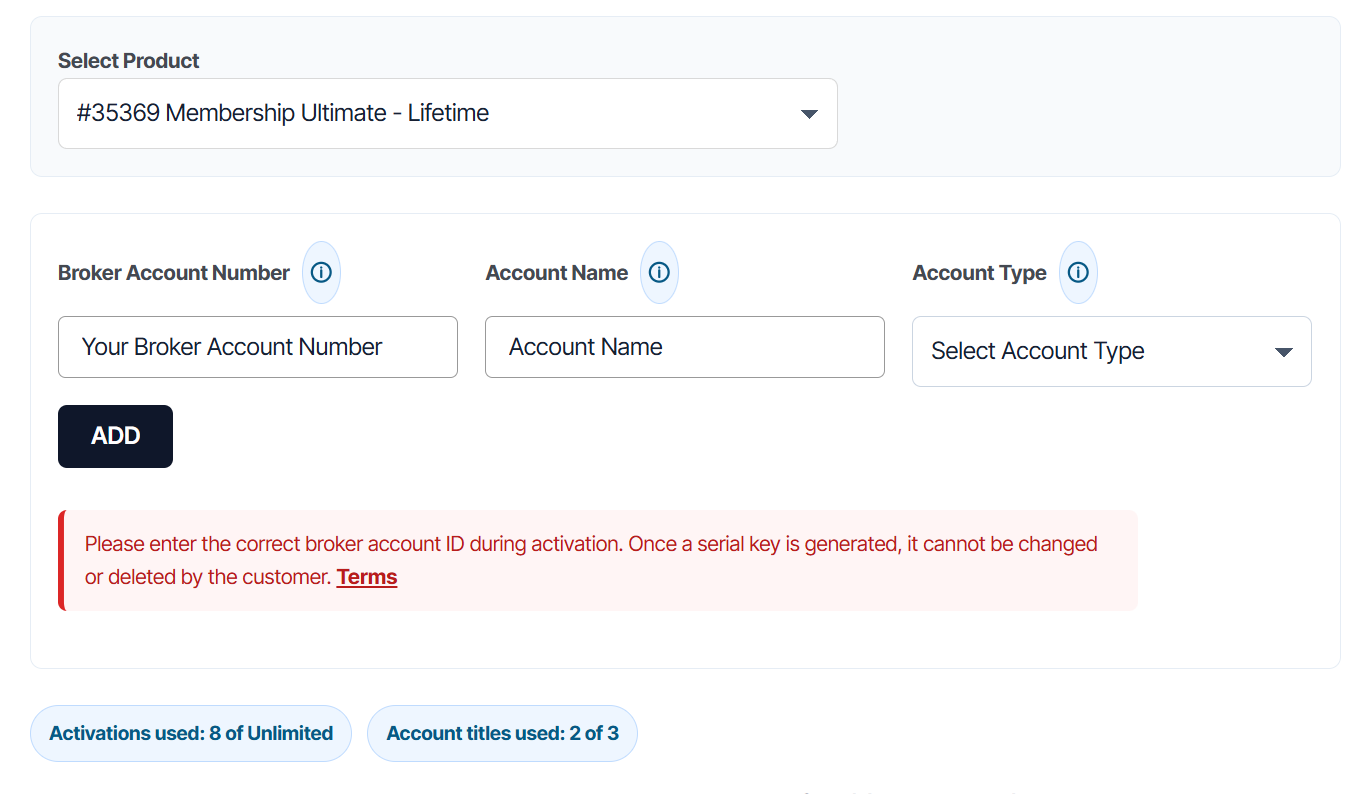
The new key format uses:
- Product — the product you purchased or selected.
- Broker Account Number — the account number from your trading terminal.
- Account Name — the account name/title shown in your trading terminal.
- Account Type — Demo or Live.
What restrictions are in the new system?
The new activation system includes a few important restrictions:
- Account number is locked after key generation. Please enter the correct broker account number before generating the key.
- Account name is required. If the account name is blank or wrong, you can edit it from the activation page.
- Account type is required. You must select Demo or Live.
- Account name/title limit applies. By default, each user can use up to three different account names in the activation system.
- New keys require updated product versions. A new website key will not work correctly on an old EA version.
- Old keys require updating before use with new product versions. A new EA version needs the new protected key format.
If your broker shows a default broker/company name as the account title instead of your personal name, contact MeetAlgo support so the team can review the case.
How to get your account name
Your account name is the name/title shown by your broker inside your trading platform. Please copy it exactly as it appears.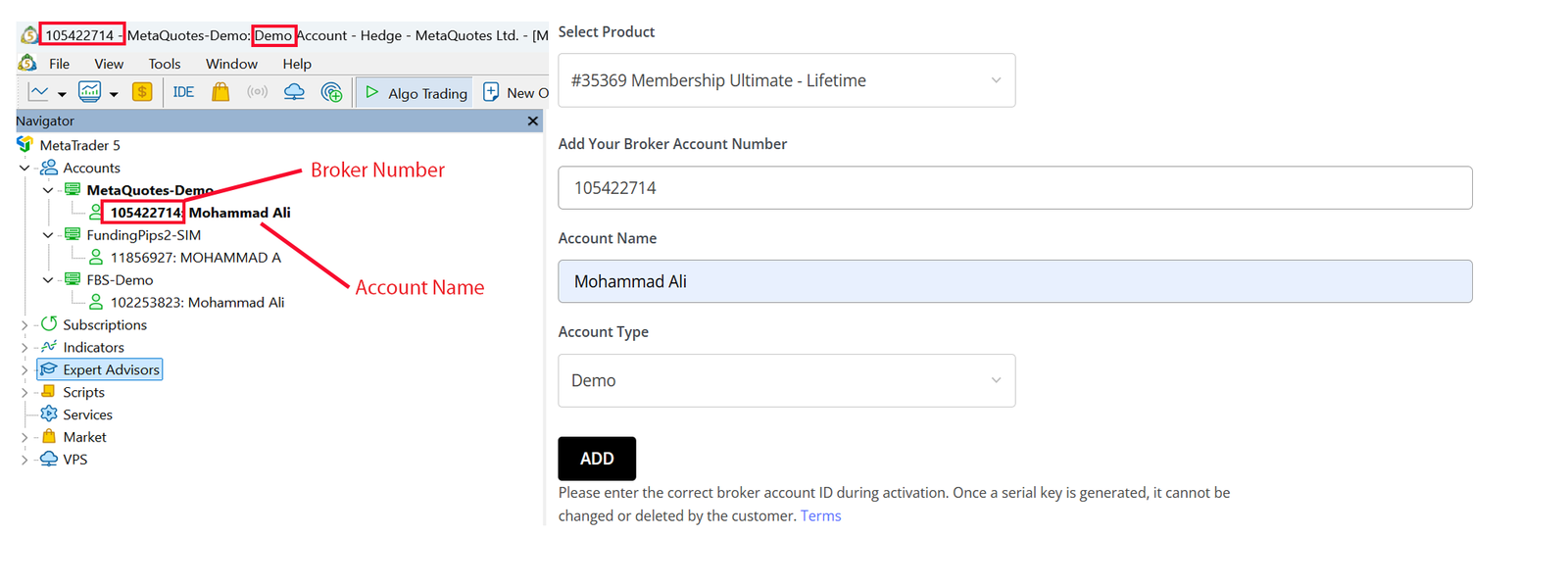
- Open your MT4 or MT5 trading terminal.
- Check the account area, account header, or Navigator > Accounts section.
- Find the name shown beside or under your trading account number.
- Use the same account name when generating or editing the activation key.
If you are not sure about the correct account name, take a screenshot of your MT4/MT5 account area and contact MeetAlgo support.
Important version rule: old and new keys are different
The new activation system uses a new protected key format. Because of this, old and new versions are not fully interchangeable.
| Scenario | What happens | Solution |
|---|---|---|
| Old EA + new website key | The old EA may show “This Serial Key is not for this account”. Sometimes it may show “This Serial Key is not for this product”. | Download and install the latest product version from your MeetAlgo account. |
| New EA + old key | The new EA will show “Old serial key format. Please update EA and generate a new key”. | Edit/update your activation key from the activation page, then copy the newly generated key. |
Scenario 1: Old EA + New website key
If you generate a new key on the website and use it inside an old EA version, the old EA may not understand the new key format.
Most likely error message:
This Serial Key is not for this account
Why this happens: the old EA does not understand the new key format. It reads the new key data in the wrong position, so it thinks the key account number is wrong.
Sometimes the old EA may also show:
This Serial Key is not for this product
But the most common error is account mismatch.
Solution: install the latest product version.
- Check the latest product version here: https://meetalgo.com/product/
- Download the latest version from your account: https://meetalgo.com/my-account/download-apps/
Scenario 2: New EA + Old key
If you install the latest EA version but continue using an old serial key, the new EA will ask you to update the key format.
Error message:
Old serial key format. Please update EA and generate a new key
Why this happens: the new EA requires the new protected key format with account number, account name, and account type.
Solution: update your old key from the activation page.
How to update an old key for a new product version
- Go to the activation page: https://meetalgo.com/my-account/activation/
- Select the correct product.
- Search your broker account number.
- Click the Edit button.
- Check your Account Name. If it is blank, add the account name. If it is wrong, correct it.
- Select the correct Account Type: Demo or Live.
- Click Save.
- A new key will be generated.
- Copy the new key and use it with the latest EA/indicator version.

Where to download the latest product version
If your new key does not work with your product, first check whether you are using the latest version.
- Product page: https://meetalgo.com/product/
- Download page: https://meetalgo.com/my-account/download-apps/
Quick checklist before contacting support
- Confirm you installed the latest EA/indicator version.
- Confirm you copied the latest generated key from the activation page.
- Confirm your broker account number is correct.
- Confirm your account name matches the trading terminal.
- Confirm account type is selected correctly: Demo or Live.
- If the issue continues, send MeetAlgo support a screenshot of the error message and your activation page details.
Summary
- The new MeetAlgo activation system is live.
- New keys require updated EA/indicator versions.
- Old keys must be updated before use with new EA/indicator versions.
- Account name and account type are required in the new key format.
- Account name and account type can be edited from the activation page.
- Account number is locked after key generation.
- Use the latest product version and the latest generated key together.
If you still need help, please contact MeetAlgo support with your product name, broker account number, screenshot of the error message, and whether your account is Demo or Live.

