

Setup Requirements, Best Practices & Troubleshooting Guide
Scalping Expert Advisors require specific broker conditions and correct configuration to work properly. Most issues reported by users are not EA bugs — they happen because spread, stop level, execution speed, or news timing is not suitable.
This guide applies to the following MeetAlgo Scalper EAs:
Follow this step-by-step guide carefully before using any scalper EA.
Step 1 — Keep Your EA Updated (Very Important)
Always make sure you are using the latest version of your scalper EA.
We regularly release:
- Bug fixes
- Performance improvements
- Broker and platform compatibility updates
Whenever a new version is released, we announce it on our official Telegram channel.
We strongly recommend staying connected so you never miss any important updates.
👉 Join our Telegram Channel: https://t.me/meetalgo
You can also manually check for updates by:
- Visiting the product page
- Checking the https://meetalgo.com/my-account/download-apps/Download section in your account
- Comparing the EA version shown on the dashboard with the latest version listed on the product page
Keeping your EA up to date ensures stable performance, better execution, and fewer issues.
Step 2 — Use Recommended Pair & Timeframe
Each scalper EA is optimized for specific pairs and timeframes.
- Always check the product page or setting file
- Use default settings first
- Avoid changing parameters randomly
👉 Additional optimized presets are available in the Setting File Archive.
Step 3 — First-Time Safe Lot Settings (Very Important)
If you are using any scalper EA for the first time, start small.
Recommended initial setup:
- Lots Type: Fixed Lot
- Fixed Lot:
0.01
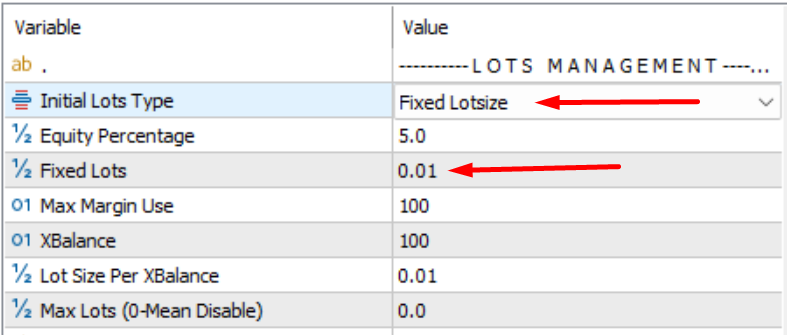
✅ Why low lot size matters:
- Better execution
- Lower slippage
- Easier spread handling
Once performance looks stable, increase lot size step by step, never suddenly.
Step 4 — Low Spread Broker Is Mandatory
Scalping EAs must use low-spread brokers.
Check:
- Your average spread
- EA input Maximum Spread
Example:
- EA Maximum Spread = 40
- Current spread = 30 → OK
- Spread often goes above 40 → EA will pause trading
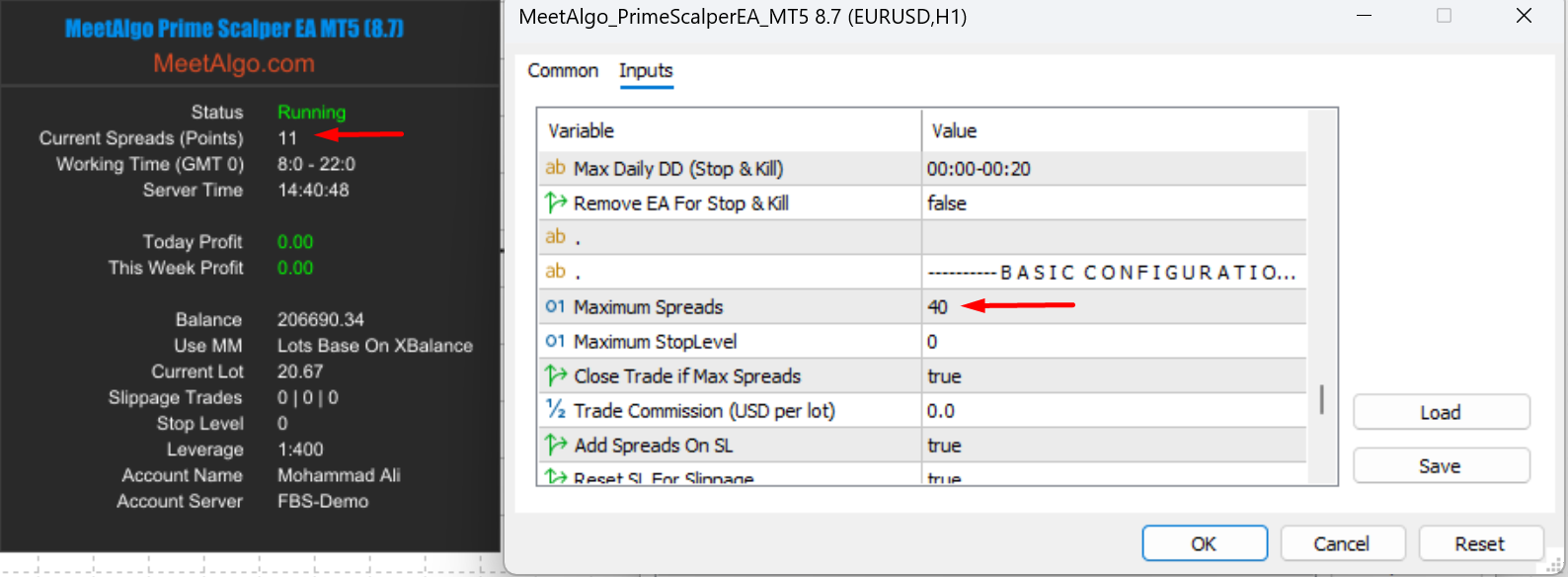
⚠️ Important:
If spread exceeds Max Spread, EA halts for ~4 minutes. This makes users think EA is not working.
Solution:
- Use a lower-spread broker
OR - Set Maximum Spread at least 4× your average spread
Step 5 — Check Stop Level (Critical)
After attaching the EA, check StopLevel on the dashboard.
✅ Required: StopLevel = 0
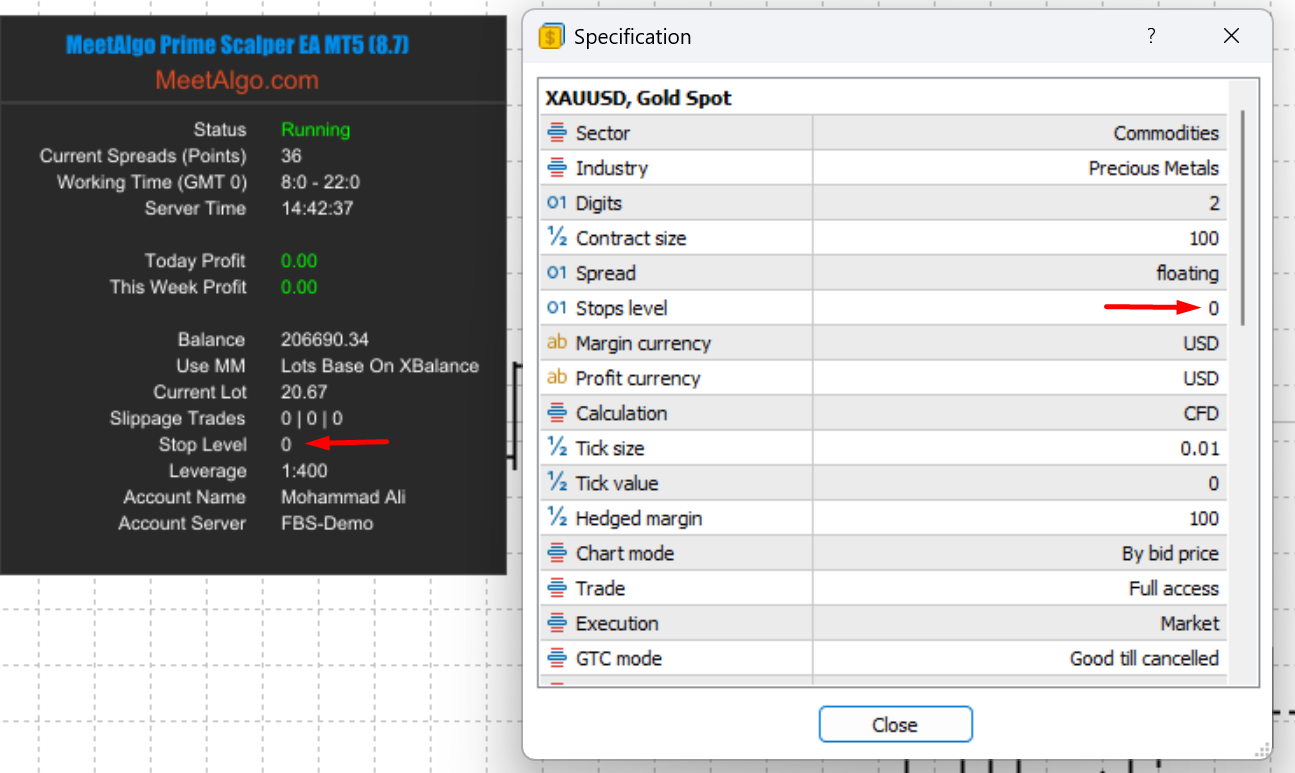
If StopLevel is high:
- Trailing Stop may not work
- Stop Loss may fail to move
- EA may not manage trades correctly
Step 6 — Fast Execution & VPS
Scalping needs low latency. Best below <3.55
Best practices:
- Use a VPS close to broker server
- Example:
- Broker server: London
- VPS location: London
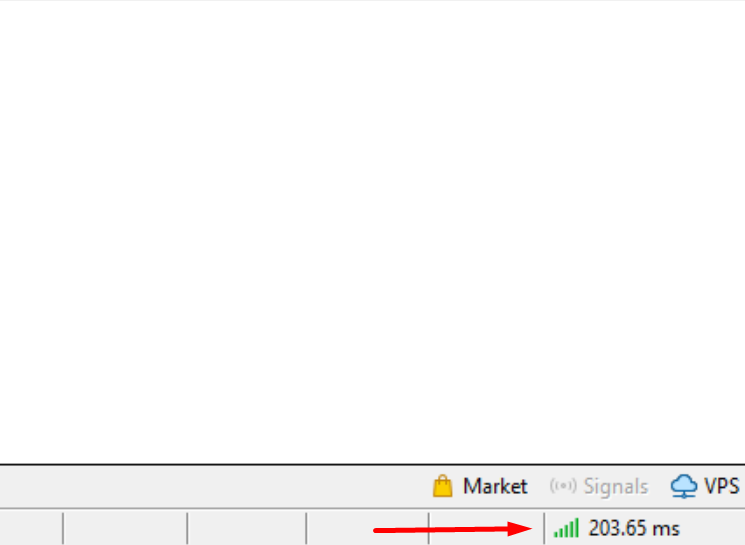
✅ Best option:
Use MQL5 VPS for excellent MetaTrader latency.
Step 7 — Use News Filter
High-impact news causes:
- Spread spikes
- Slippage
- Unexpected losses
Recommended:
- Enable News Filter
- Use High Impact News only
Avoid trading during:
- Interest Rate decisions
- NFP
- CPI
- Central bank speeches
Troubleshooting (Most Common Issues)
In most cases, Prime Scalper EA and other MeetAlgo Scalper EAs are not broken. The problem is usually related to Max Spread settings or Lot Size calculation.
Below are the two main issues you must check.
❌ Issue 1: Maximum Spread Problem (Most Common)
Scalper EAs will not open trades if the current spread exceeds the Maximum Spread you set in EA inputs.
What happens?
- If spread > Max Spread
- EA will pause trading for about 4 minutes
- During this time, no new trades will open
❌ Issue 2: Lot Size / Margin Problem
Sometimes the EA calculates a lot size that your account cannot afford.
This usually happens when you use:
- Equity Percentage
- Margin Percentage
- XBalance-based lot sizing
Example:
- EA calculates lot size =
0.56 - But your free margin is not enough
- Broker rejects the order
- EA cannot open trades
✅ Solution:
- For first use, always start with:
- Lot Type: Fixed Lot
- Lot Size:
0.01
- Increase lot size slowly and step by step
- Make sure your free margin is enough for calculated lot size
▶ How to Confirm the EA Is Running
Before assuming the EA is not working, always check the following:
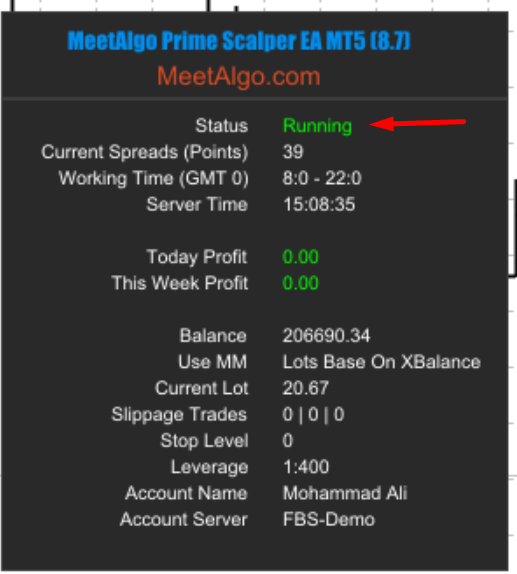
✅ 1. Dashboard Status
Make sure the EA Dashboard shows:
Running
✅ 2. Expert Tab Messages
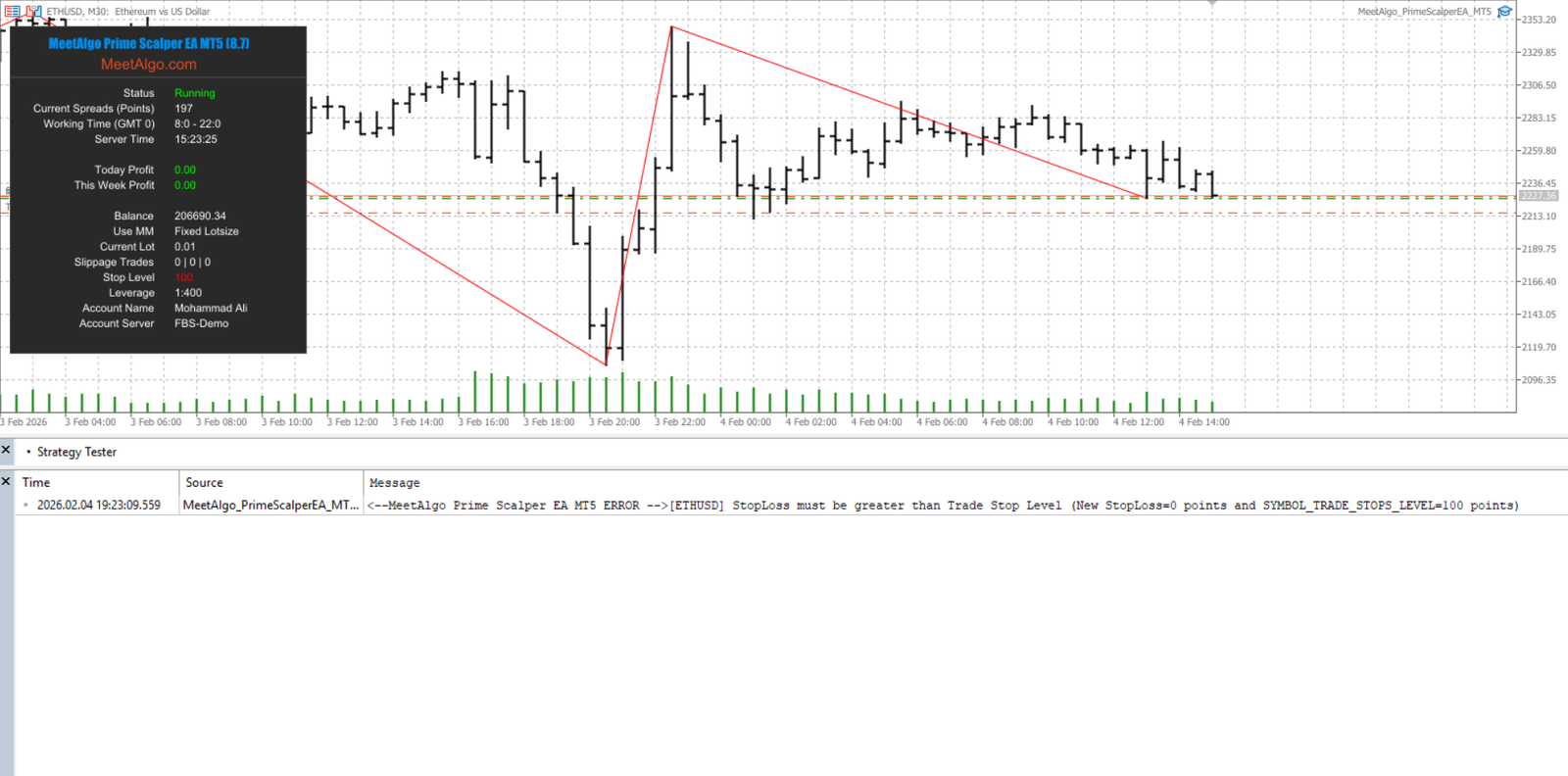
Sometimes the EA Dashboard shows “Running”, but the EA may still write error or warning messages in the Expert tab.
Always check:
- Terminal → Expert tab
- Look for any error, warning, or restriction messages written by the EA or the broker
If you see messages related to:
- Spread
- Margin
- StopLevel
- Trade context busy
- Slippage or order rejection
These messages indicate why the EA is unable to open or manage trades, even though the dashboard status is “Running”.
If:
- Dashboard shows Running
- AND there are no critical errors in the Expert tab
👉 That means the EA is working correctly
📩 Need Help or Have Questions?
If you have any questions about this product, setup, or configuration, please feel free to contact us.
Our support team is always happy to help you get the best performance from your EA.
👉 Contact Us: https://meetalgo.com/contact/

