

If your MeetAlgo EA uses a time filter or news filter, the broker GMT setting must be correct. When the broker GMT is wrong, the EA may open trades outside your expected trading time or may not apply the news filter at the correct time.
Many EAs include two GMT options: Auto GMT and Manual GMT. Auto GMT can work correctly on some brokers, but it can show the wrong GMT offset on other brokers. For this reason, we recommend using Manual GMT and entering your broker GMT offset yourself.
Why Auto GMT May Not Work Correctly on Every Broker
Different brokers use different server times. Some brokers also change their server time during daylight saving periods. If Auto GMT reads the wrong offset, the EA’s time configuration and news filter timing can become inaccurate.
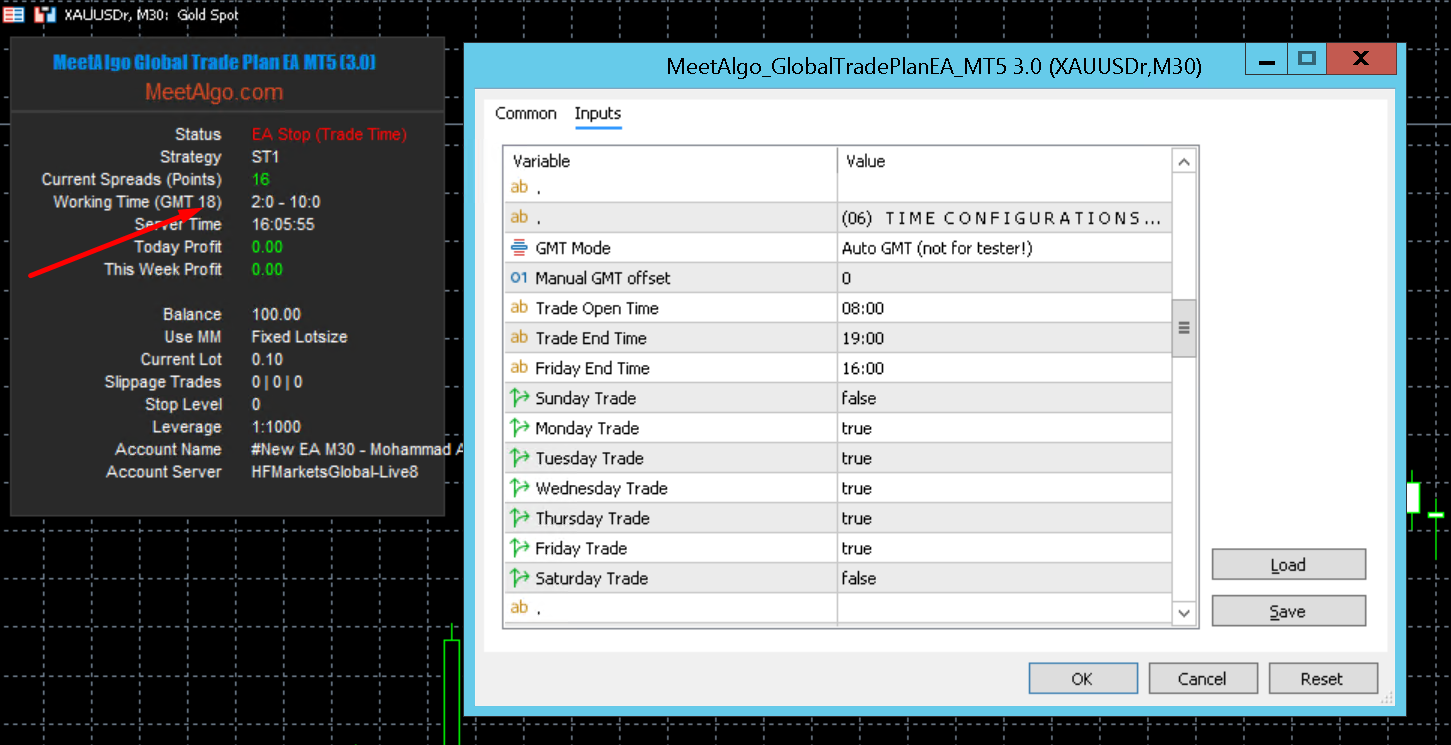
In the example above, the EA panel shows the working time based on the detected GMT. If the detected GMT is wrong, the displayed working time and filter behavior may also be wrong.
When You Must Set Broker GMT Correctly
- When using the EA Time Filter
- When using the EA News Filter
- When setting trade open time, trade end time, Friday end time, or session-based trading rules
- When your broker server time is different from GMT/UTC
How to Check Your Broker GMT in MetaTrader
Follow these steps to calculate your broker GMT offset manually.
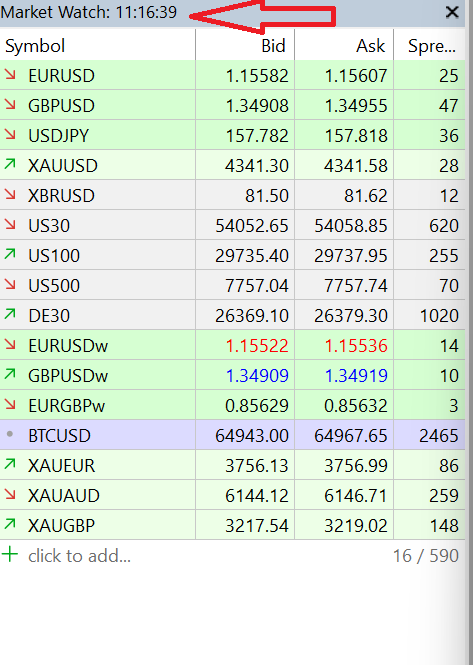
Step 1: Open Market Watch in MetaTrader
Open your MetaTrader terminal, then go to View → Market Watch. At the top of the Market Watch window, you will see your broker’s current server time.
Step 2: Open GMT Time on Time.is
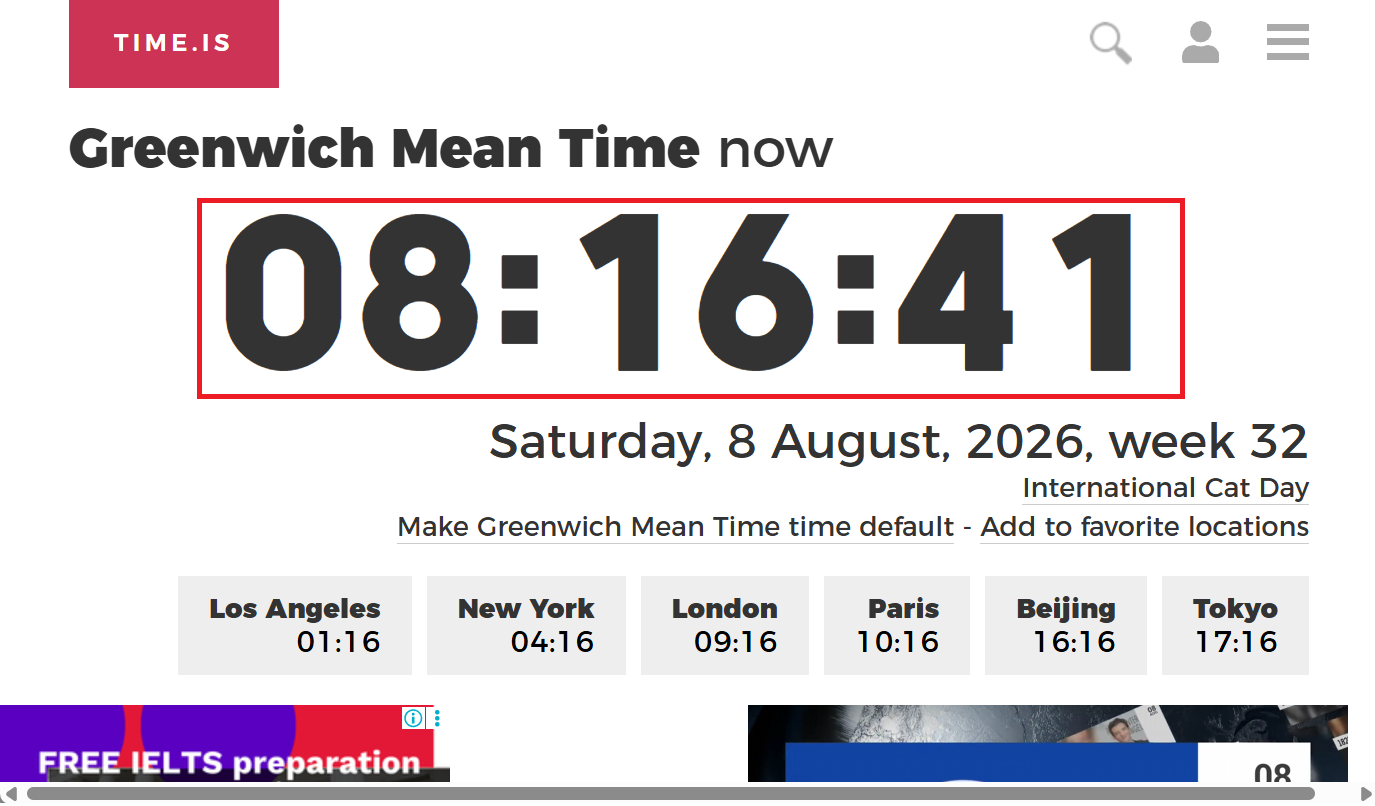
Go to https://time.is/GMT. Make sure you are checking Greenwich Mean Time, not your local country time.
Step 3: Compare the Hour Difference
Compare the hour shown in MetaTrader Market Watch with the hour shown on Time.is GMT. The difference between these two times is your broker GMT offset.
Example: if your broker server time is 11:16 and GMT time is 08:16, the difference is 3 hours. That means your broker server time is GMT+3. In this case, enter 3 in the EA’s Manual GMT offset setting.
How to Set Manual GMT in the EA
- Open the EA settings.
- Go to the Time Configurations section.
- Set GMT Mode to Manual GMT.
- Enter the calculated value in Manual GMT offset.
- Click OK and check that the EA panel shows the correct working time.
Important Notes
- Do not use your local computer time to calculate broker GMT.
- Always compare broker server time with GMT time.
- If your broker changes server time because of daylight saving time, check the GMT offset again.
- If the time filter or news filter is not working as expected, verify the Manual GMT offset first.
Conclusion
Auto GMT is convenient, but it may not detect the correct broker GMT on every broker. For accurate EA time filter and news filter behavior, the safest method is to use Manual GMT and enter your broker’s correct GMT offset after checking Market Watch and GMT time.
Risk disclaimer: Trading involves significant risk of loss. Past performance does not guarantee future results. Results vary by broker, market conditions, and settings. MeetAlgo provides software tools only and does not provide financial advice.

