

Prop firm challenges are becoming increasingly popular among traders. However, most prop firms have strict risk management rules that must be followed in order to pass and keep funded accounts.
The good news is that most MeetAlgo EAs include built-in Prop Firm Risk Management Filters that can help you stay within your challenge limits.
In this guide, we will use Prime Scalper EA as an example, but the same principles can be applied to most MeetAlgo EAs.
Understanding Prop Firm Rules
Every prop firm has its own requirements, but most challenges include rules such as:
| Rule | Example |
|---|---|
| Daily Loss Limit | 3% |
| Maximum Loss Limit | 6% |
| Maximum Floating Loss | 2% |
| Profit Target | 6% |
Example: FundingPips 5K Challenge
- Account Size: $5,000
- Daily Loss: 3% = $150
- Maximum Loss: 6% = $300
- Floating Loss: 2% = $100
Step 1: Find the Lowest Risk Condition
Before configuring any EA, identify the lowest loss limit from your prop firm’s rules.
Using the FundingPips example:
| Rule | Amount |
|---|---|
| Floating Loss | $100 |
| Daily Loss | $150 |
| Max Loss | $300 |
The lowest limit is:
👉 Floating Loss = $100
This means your EA should never risk more than approximately $100 per trade.
Option 1 (Recommended): Configure Lot Size Correctly
This is the safest and most professional method because it allows the EA to trade exactly as it was optimized.
Example
Suppose:
- Pair: XAUUSD (Gold)
- Fixed Stop Loss: 300 Points
- Prop Firm Maximum Floating Loss: $100
You first need to determine how much money is lost if the stop loss is hit.
Example:
- 0.01 lot = approximately $3 loss at 300 points
- 0.10 lot = approximately $30 loss
- 0.30 lot = approximately $90 loss
Since $90 is below the $100 limit:
👉 Use 0.30 Lots
This ensures a full stop loss hit remains within your prop firm’s risk requirements.
Step 2: Configure Trade Stop Filter
Once the lot size is correctly calculated, use the EA’s built-in Trade Stop Filter.
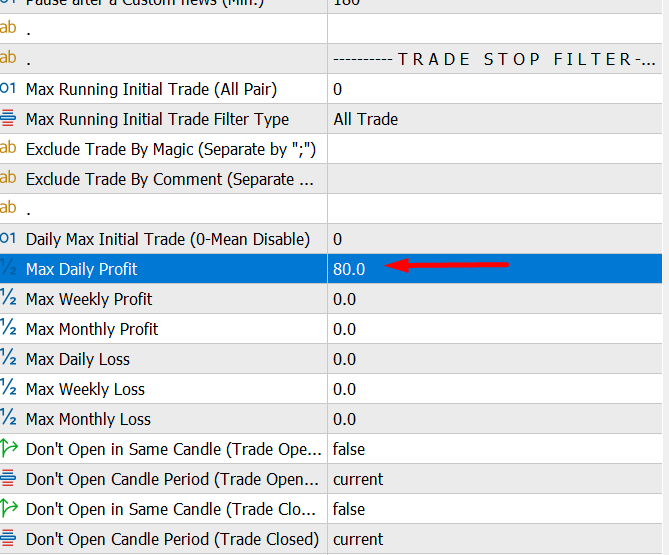
Recommended Setting
Max Daily Loss = 80Why 80?
Because your maximum stop loss per trade is approximately $90.
By setting Max Daily Loss below the stop loss value:
- If a trade loses $90
- Daily loss exceeds $80
- EA stops opening new trades for the rest of the day
This prevents multiple losses on the same day.
Important
Always set:
Max Daily Loss < Single Trade SL LossExample:
| Single Trade Loss | Max Daily Loss |
|---|---|
| $90 | $80 |
| $150 | $130 |
| $200 | $180 |
Why We Recommend This Method
The Trade Stop Filter does not interfere with active trades.
It simply prevents the EA from opening new positions after your loss limit has been reached.
This means:
✅ Original strategy remains unchanged
✅ Original stop loss remains unchanged
✅ Backtest logic remains unchanged
✅ Optimization remains valid
Option 2: Use Stop & Kill Protection
Most MeetAlgo EAs also include Stop & Kill protection under:
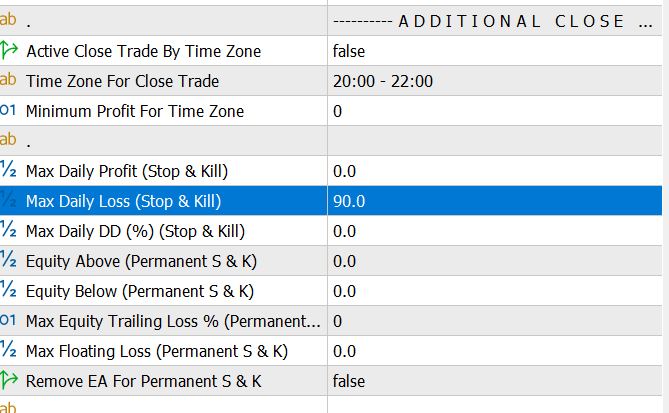
Additional Close Filter
Example:
Max Daily Loss (Stop & Kill) = 90How Stop & Kill Works
Unlike Trade Stop Filter, Stop & Kill actively monitors running trades.
If your floating loss reaches the specified value:
- Open trades are closed immediately
- Pending orders are removed
- Trading is stopped
Example
Suppose:
- Lot Size = 1.00
- Stop Loss = 300 Points
- Stop & Kill = $90
If the trade reaches: -$90
The original stop loss is never reached.
Difference Between Option 1 and Option 2
| Feature | Trade Stop Filter | Stop & Kill |
|---|---|---|
| Closes Running Trades | ❌ No | ✅ Yes |
| Stops New Trades | ✅ Yes | ✅ Yes |
| Preserves Original Strategy | ✅ Yes | ❌ No |
| Interferes With Optimization | ❌ No | ✅ Yes |
| Recommended | ✅ Yes | Only if needed |
Which Option Should You Use?
Use Option 1 if:
- You know your EA’s stop loss size
- You know how to calculate risk per trade
- You want the EA to operate exactly as optimized
This is our recommended approach.
Use Option 2 if:
- You do not know the stop loss risk calculation
- You want a hard account protection layer
- You prefer strict prop firm compliance
Keep in mind that Stop & Kill may alter the EA’s original trading behavior because it can close trades before the optimized stop loss is reached.
Additional Tips for Prop Firm Trading
Use Fixed Lots
Avoid aggressive lot scaling.
Fixed lot sizes make it easier to control risk and remain within challenge rules.
Monitor Maximum Spread
High spreads can increase risk.
Configure:
Maximum Spread Filterto prevent entries during abnormal market conditions.
Enable News Filter
Major news events can cause:
- Slippage
- Spread widening
- Unexpected losses
We recommend enabling:
Custom News Onlyespecially when trading Gold (XAUUSD).
Final Recommendation
For most traders, the safest setup is:
✅ Fixed Lots
✅ Correct Lot Size Calculation
✅ Trade Stop Filter
✅ News Filter Enabled
✅ Low Spread Broker
✅ VPS Hosting
This allows your EA to trade according to its original optimization while remaining within your prop firm’s risk limits.
Prime Scalper EA:
https://meetalgo.com/product/prime-scalper-ea/
Global Trade Plan EA:
https://meetalgo.com/product/global-trade-plan-ea/
More Details About Risk Filters
For a full explanation of how the Initial Trade Stop Filter works, please read our official guide:
🔗 https://meetalgo.com/docs/functions-glossary/initial-trade-section/initial-trade-stop-filter/
This filter mainly controls whether the EA is allowed to open new initial trades. It does not normally close an already running trade. For prop firm usage, this is useful when you want the EA to stop opening new trades after reaching a daily loss, weekly loss, monthly loss, or profit target.
For example, if your EA trade hits Stop Loss and your daily loss limit is reached, the EA will stop opening new trades for that day.
For a full explanation of how the Additional Close Filter works, please read our official guide:
🔗 https://meetalgo.com/docs/functions-glossary/tp-sl-section/additional-close-filter/
This filter works differently because it can actively monitor and close running trades when a specific condition is reached. For example, if Max Daily Loss (Stop & Kill) is triggered, the EA can close open trades and stop trading according to your selected settings.
This is useful when you need a strict protection system, but it may interfere with the EA’s original optimized SL/TP logic.

