
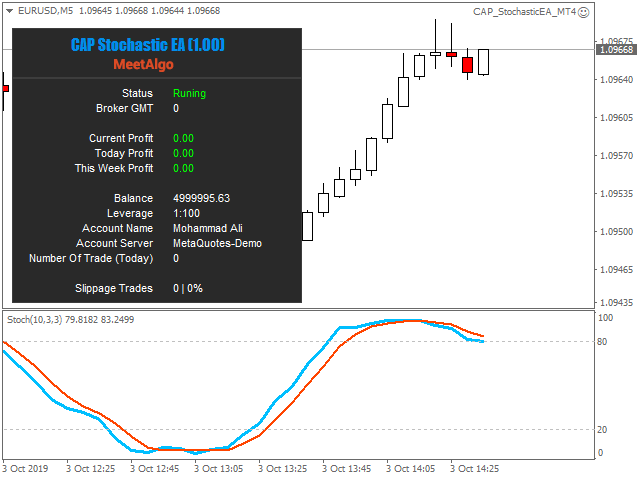
Stochastic EA Overview
Automate entries based on Stochastic line crosses and signal zones. Stochastic EA for MetaTrader 4 and MetaTrader 5 uses the Stochastic Oscillator with selectable entry modes, adjustable buy and sell levels, and signal-reset controls. The documented choices distinguish a MAIN/SIGNAL crossover, a line crossing a threshold, a comeback into a zone, and a line remaining in a zone.
MAIN means %K and SIGNAL means %D. Stoch Buy Level defines the oversold buy level; Stoch Sell Level defines the overbought sell level. The guide’s Pro labels may reflect earlier editions; check the modes available in your installed version rather than treating those labels as current purchase requirements.
How the Stochastic Entry Logic Works
Enable Active Stoch and choose Signal Type (Stoch_Type). These descriptions preserve the guide’s wording about signal relationships; they do not replace it with an assumed oscillator-reversal rule.
| Entry mode | Documented signal relationship | Historical guide label |
|---|---|---|
| Cross at OS/OB | %K crosses %D at the oversold level for a buy or the overbought level for a sell. | Not marked Pro-only in the guide. |
| Cross at Any Level | %K crosses %D without restricting the cross to an oversold or overbought zone. | Pro |
| Cross MAIN Line at OS/OB | MAIN crosses the oversold or overbought level. | Pro |
| Cross SIGNAL Line at OS/OB | SIGNAL crosses the oversold or overbought level. | Pro |
| Cross COMEBACK MAIN Line at OS/OB | MAIN reverses and crosses back into the oversold or overbought zone. | Pro |
| Cross COMEBACK SIGNAL Line at OS/OB | SIGNAL reverses and crosses back into the oversold or overbought zone. | Pro |
| MAIN Line at Oversold/Overbought Level | MAIN remains within the oversold or overbought zone. | Pro |
| SIGNAL Line at Oversold/Overbought Level | SIGNAL remains within the oversold or overbought zone. | Pro |
Direction detail: the guide associates oversold with buy signals and overbought with sell signals, but does not spell out every upward/downward crossing condition. It specifically describes COMEBACK as crossing back into the zone, not leaving it. Confirm the precise crossing direction for your selected mode before use rather than assuming a conventional reversal setup.
Indicator and repeat-signal settings
TimeFrame selects the Stochastic calculation timeframe. STOCH K, STOCH D and STOCH Slow configure the oscillator, while STOCH Method and STOCH Price select its calculation method and price basis. STO Signal Bars controls how many bars back the EA checks; the guide identifies 0 as the current bar.
Open Trade After Reset enables a reset requirement before another trade. STO Buy Reset Level and STO Sell Reset Level configure the respective reset levels; the guide describes waiting for the oscillator to exit and re-enter the signal zone. Reverse Stoch Signal reverses normal buy and sell signals. Review the Stochastic EA user guide alongside your installed inputs when testing these settings.
Stochastic EA belongs to our General Trading EA range. The sections below describe its shared management framework. Available inputs differ by edition and installed version; use only the controls present in your EA and check the version comparison guide before choosing features.
Trading Direction and Position Sizing
Choose which signals the EA can trade
- Both Side (Long and Short): follow both buy and sell signals.
- Any Single Side: take the first qualifying direction rather than opening both sides together.
- Long Side Only: follow buy signals and ignore sell signals.
- Short Side Only: follow sell signals and ignore buy signals.
Set the initial trade size
Choose a fixed lot size or balance-based sizing using the documented XBalance and LotsizePerXBalance inputs. Balance-based sizing adjusts volume as the account balance changes; it is not the same as calculating a fixed percentage risk from the stop-loss distance. The general settings also include a maximum lot-size limit and a maximum-spread filter.
See initial trade and lot-size settings for the direction modes, sizing methods and input examples.
Common Trading Functions
The following sections explain the management tools documented for the General Trading EA range. Use the settings available in your edition and version; enabling every feature is not necessary for every strategy.
Multi-pair trading
Trade the chart symbol alone or enable multi-pair trading to monitor a configured list from one chart. Enter broker symbol names exactly, including any prefix or suffix, and separate pairs with semicolons. When multi-pair mode is enabled, the configured list determines which symbols the EA trades.
Read the multi-pair setup guide.
Initial trade limits and stop filters
Control when the EA may open new initial positions with running-trade limits, daily trade-count limits, profit/loss thresholds and same-candle restrictions. These entry-stop filters apply to initial trades; they should not be treated as a switch that automatically stops every grid trade or closes existing positions.
Explore the initial trade stop filters.
Trading sessions and days
Define trading windows and choose the days on which the EA can open trades. Session settings use your trading terminal’s time, not your computer’s local clock. Where the input is available, choose whether the time restriction applies to initial entries only or to initial and grid entries.
Configure trading times and days.
Economic news filter
Pause eligible new entries before and after selected economic news events. Configure the relevant currencies, event impact levels and pause windows. Automatic news downloads require the appropriate MetaTrader WebRequest permissions, and the broker-time configuration must be correct. News filtering does not remove the risk of volatility, gaps or slippage.
Read the news-filter setup and troubleshooting guide.
Optional Grid and Martingale Management
These tools change how exposure is managed after an initial entry. They are optional strategy settings, not a guarantee that a losing position will recover.
- Loss-side grid: add positions at configured intervals when price moves against the initial trade.
- Profit-side grid: add positions when price moves in favor of the initial trade. A reversal can still turn the combined position into a loss.
- Martingale: increase the size of a subsequent trade after a loss using the configured lot progression and reset rules.
- Shared grid controls: the common documentation covers grid drawdown-reduction rules and checks that restrict additional entries near existing grid trades. Confirm these inputs are present in your version before using them.
Read the guides for profit-side grid and its difference from loss-side grid, martingale settings, and shared grid controls.
Understand the added risk. Grid and martingale methods can increase position size, margin requirements and drawdown quickly. They can lead to substantial losses or loss of the trading account. Test the complete configuration on a demo account and set exposure limits before considering live use.
Take Profit, Stop Loss and Exit Controls
Configure how positions close
The common TP/SL settings include individual and average-position exits, with supported calculations based on points, percentages, ATR or currency amounts. Select the method appropriate to your strategy and check whether it manages an individual trade, one direction or a group of positions.
Virtual and broker-side stops are different. The documentation describes EA-managed virtual TP/SL and separate hard TP/SL options for initial trades. Virtual exits require the terminal and EA to remain running and connected; do not assume they provide broker-side protection when the terminal is offline. Check grid compatibility before enabling hard stops.
Read the TP/SL and profit/loss management guide.
Partial closing
Close a configured percentage of a position at staged profit levels instead of closing the entire position at once. The documented sequence supports up to three stages and remains subject to the broker’s lot-size limits. Review the restart behavior before relying on a partially completed sequence.
Learn how partial closing works.
Break-even and trailing stops
Use a profit trigger to move the stop toward the entry price or a configured offset. Break-even makes its adjustment once, while trailing settings can continue adjusting the stop as price moves favorably. These controls do not guarantee a particular exit price during gaps or fast markets.
Set up break-even and trailing.
Additional closing filters
The documented closing controls include scheduled exits, opposite-signal closing, profit/loss thresholds, equity limits and drawdown conditions. Unlike entry-stop filters, supported closing rules can close positions already open. Confirm each rule’s scope and trade-group settings before enabling it.
Review the additional close filters.
EA Configuration and On-chart Display
Use MagicNumber and trade comments to identify positions managed by the EA. When running multiple instances on the same symbol, assign distinct MagicNumbers to avoid management conflicts. The common settings also cover slippage and order-error checks; broker execution and market conditions still affect trade fills.
The optional on-chart display shows EA status, broker time, account information and trading activity. Configure its position and text size to suit your chart.
See EA configuration settings and the dashboard guide.
Before You Start
- Choose the correct MT4 or MT5 edition and review the Stochastic EA user guide.
- Configure the indicator or pattern settings, entry mode, trading direction and initial lot size.
- Set your entry restrictions and exit rules. Leave optional recovery features disabled unless they are part of a strategy you have tested.
- Check broker symbol names, terminal time and any news-download permissions.
- Backtest and forward-test on demo using your intended broker conditions. Review drawdown and execution behavior, not only net profit.
For more input explanations, use our Common Function Glossary. Trading financial instruments involves a high level of risk and may not be suitable for all investors. Past performance is not indicative of future results. MeetAlgo provides automated trading software and tools for educational and automation purposes only. MeetAlgo does not provide investment advice, portfolio management services, or any regulated financial services. Always consult a licensed financial advisor before making trading decisions.
Custom Development
Need entry rules, filters or trade-management behavior beyond the standard Stochastic EA setup? MeetAlgo offers custom development for modifications to an existing EA or a new trading system built around your requirements. Share your platform, entry and exit rules, risk controls and examples so we can assess the scope.
Request a custom development quote.
White Label Service
Want to offer a trading tool under your own brand? Contact MeetAlgo to discuss white-label customization for Stochastic EA. Tell us about your branding and distribution plans so we can confirm the available customization, redistribution permissions, licensing terms and project scope.
Discuss your white-label project.
Any Questions?
Not sure which edition, entry mode or management setting fits your intended setup? Send us your platform, EA version, broker symbol and a short description of what you want the EA to do. Screenshots of the relevant inputs can help us understand your question.
Contact MeetAlgo support or start with the Stochastic EA user guide.

