
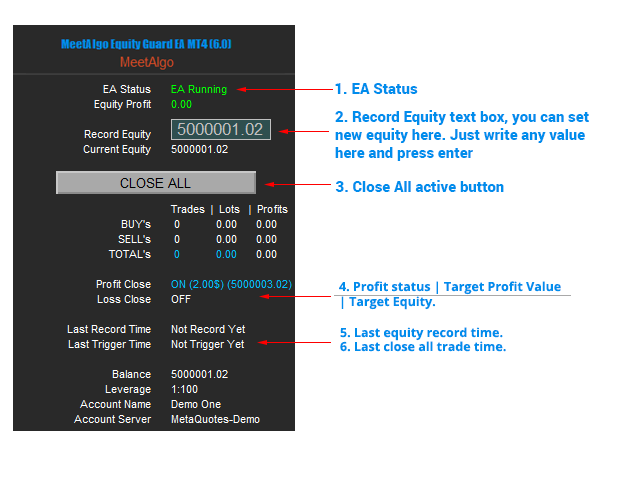
Equity Guard EA: account-wide equity protection for MT4 and MT5
Running several EAs or combining automated and manual trades makes it harder to watch the account as a whole. Equity Guard EA 8.3 monitors account-level conditions and carries out the response you choose: close trades, remove configured external EAs, send alerts, or combine these actions.
Use this account equity manager to define when you want to act before a busy session begins. It does not open a trading strategy or promise to prevent losses. It gives you a consistent response to selected equity, drawdown, time, profit/loss and news conditions while MetaTrader is running.
- Monitor the combined account rather than watching each chart separately.
- Choose different actions for each of four trigger groups, including alerts without trade closure.
- Review initial equity and already-matching conditions before starting.
- Use MT4 or MT5; automatic market closing on MT5 requires a hedging account.
Four ways to decide when to act
Each trigger group has its own switches for the three actions below. A condition being met does not mean every action is enabled.
1. Equity profit, loss and drawdown
Set equity profit or loss thresholds in account currency or percent, or use a maximum equity drawdown threshold against your recorded reference. This suits traders who want one account-level target across several open positions. Relative equity calculations require a positive initial reference.
2. Absolute equity levels and daily drawdown
Watch for equity above or below a chosen account value, or use the daily equity/balance drawdown settings and their reset windows. Compare the calculation and reset behavior with your own risk policy. These controls do not guarantee compliance with a broker or prop firm’s rules.
3. Time windows and period profit/loss
Use a configured time window with a minimum-profit condition, or daily, weekly and monthly profit/loss thresholds. Time-based monitoring can help you plan a session exit; period checks depend on usable trading history and the EA’s accounting rules.
4. News monitoring
Select currencies, event importance or custom event-title keywords, then set the minutes before and after matching news. News monitoring can use the same account-wide actions as the other triggers: it is not limited to trades in the event’s currency. Connected overlapping news windows are handled together within the running session.
A working calendar feed is required. If it is unavailable or unusable, the EA warns rather than inventing a news-triggered close; other enabled triggers remain available. Live news monitoring is bypassed in the tester.
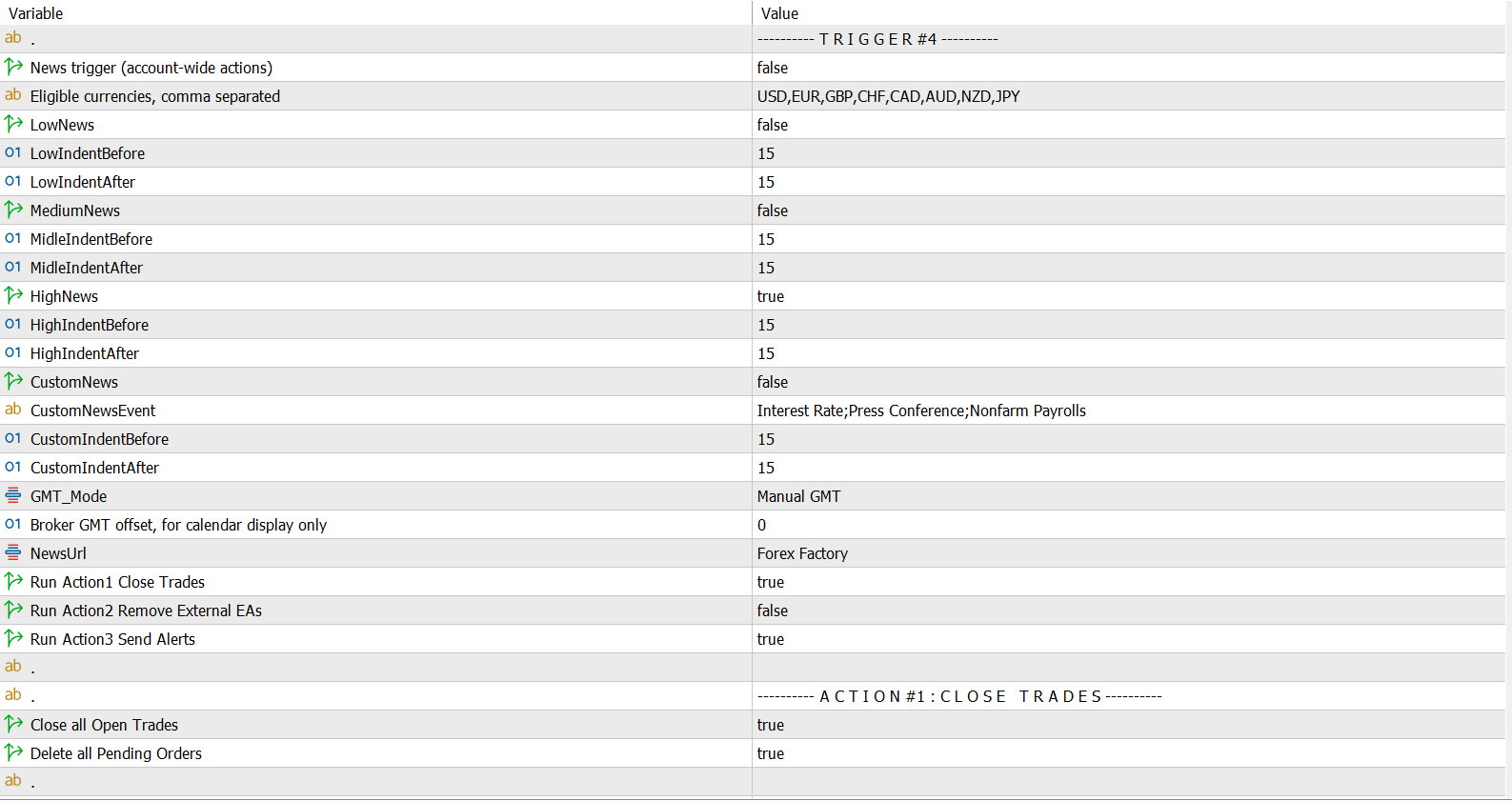
Choose the response for each trigger
Action 1: close trades and delete pending orders
The trigger’s close-action switch enables the shared settings for closing open trades and deleting pending orders. Choose either or both. The EA captures the selected tickets for that event, retries within a bounded workflow and checks completion. If it cannot confirm an outcome, it can remain in HOLD for review rather than assume the account is clear.
This is account-wide management, not a symbol or magic-number filter. Other EAs or manual trading can create new orders after ticket capture; those later tickets are not added to that captured action list.
Action 2: remove configured external EAs
Use chart IDs and removal templates to remove EAs from selected charts. Both the trigger’s removal switch and the relevant external chart group must be enabled. Optional restoration uses your restore templates when the workflow permits it.
Removing an EA is not an account lock. It does not block manual trading, other terminals or every unconfigured EA. Test the chart/template setup on a demo account first.
Action 3: send alerts
Enable the trigger’s alert action and the channels you want: pop-up, sound, email or mobile notification. Email and push notifications also need working MetaTrader configuration. An alerts-only setup lets you review a condition without requesting trade or chart actions.
After the actions
Choose whether Equity Guard continues, pauses for a set number of minutes, stops for the day or stays stopped until reset. These options follow trade/removal actions; an alerts-only event does not initiate that workflow. Optional terminal shutdown happens only after selected trade/removal actions are confirmed. It does not reopen MetaTrader automatically.
Start with an equity reference you understand
On a fresh start, choose current equity, a previously recorded value or a positive custom amount. When applicable, you can wait until there are no market trades before capturing a reference. Review startup warnings for conditions that already match, then press Start.
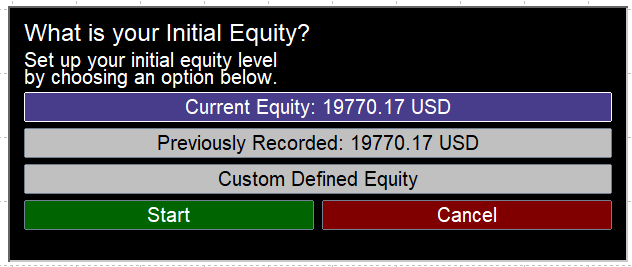
In the waiting state, a zero reference prevents relative equity profit/loss and equity-drawdown calculations. It does not disable every other condition: independent absolute, period, time or news checks can still act. Pending orders do not prevent reference capture.
Restart is not automatic recovery. Version 8.3 can save the positive equity reference, but not the previous action workflow. Fresh attachment, restart or recompilation requires setup again. Removed EAs and unfinished actions are not automatically recovered. The older Last Equity and Highest Equity reset modes are no longer available; review older presets before use.
How it fits a trading session
Several EAs, one account-level limit
Attach Equity Guard to a separate chart, choose your reference and enable the equity conditions you need. Configure trade closure and pending deletion if those are your intended responses. To remove selected EAs too, set up their chart groups and templates rather than assuming closing trades stops them reopening positions.
A news warning without an automatic exit
Enable a news trigger for the currencies and event windows you follow. Turn on its alert action and leave its trade/removal actions off. This is an example workflow, not a recommended news-trading strategy; verify the feed and notification channels before the session.
A planned session finish
Use the time-window condition and minimum-profit requirement, then select the actions and pause behavior that match your plan. Test timing against your terminal and broker setup. A time window does not guarantee an immediate fill or a particular closing price.
Before you use Equity Guard on a live account
- Install the correct MT4 or MT5 edition, complete activation and test on demo. For MT5 automatic market closing, confirm the account is hedging, not netting or exchange.
- Check trigger values, initial equity, action switches, alert channels and external chart/template groups. Use one carefully configured instance; multiple instances are not coordinated.
- Keep MetaTrader connected and operational with the required permissions. Local monitoring cannot provide continuous protection while the terminal or connection is unavailable.
- Pause and review the reference around deposits or withdrawals. Cash movements change account equity and can satisfy a threshold without representing trading profit or loss.
- Check the dashboard after an action. HOLD, invalid settings or unavailable history need attention; do not assume a requested close has completed.
Trading involves risk. Equity protection software cannot guarantee a maximum loss, an exact execution price or profitable results. Slippage, gaps, broker restrictions and connection failures can affect the outcome. Past performance is not indicative of future results.
Equity Guard EA questions
Can it work alongside manual trades and other EAs?
Yes. It monitors account-level conditions and can act on trades from either source. External-EA removal is limited to configured charts and templates; it is not universal control over all trading activity.
Does the MT5 edition support netting accounts?
Automatic market closing in version 8.3 is hedging-only. Do not choose it for an MT5 netting or exchange account if your intended protection depends on closing market positions.
Will it resume protection automatically after a restart?
A saved reference is not a restored session. Complete the startup review again and check any removed EAs or unfinished actions yourself. Do not rely on automatic restart recovery.
Can I use it for prop-firm drawdown rules?
Compare the firm’s exact definitions, reset times and treatment of floating profit/loss with the EA’s behavior first. Equity Guard is not a compliance certification and cannot guarantee that an account stays within those rules.
Where can I find setup help?
See the MT4/MT5 download and installation guide and the Equity Guard EA user guide. The existing user guide includes older reset and restart instructions; use the version 8.3 startup and compatibility notes above where they differ.
Need help deciding whether the workflow fits your account? Contact MeetAlgo with your platform, account mode and intended trigger/action setup.

